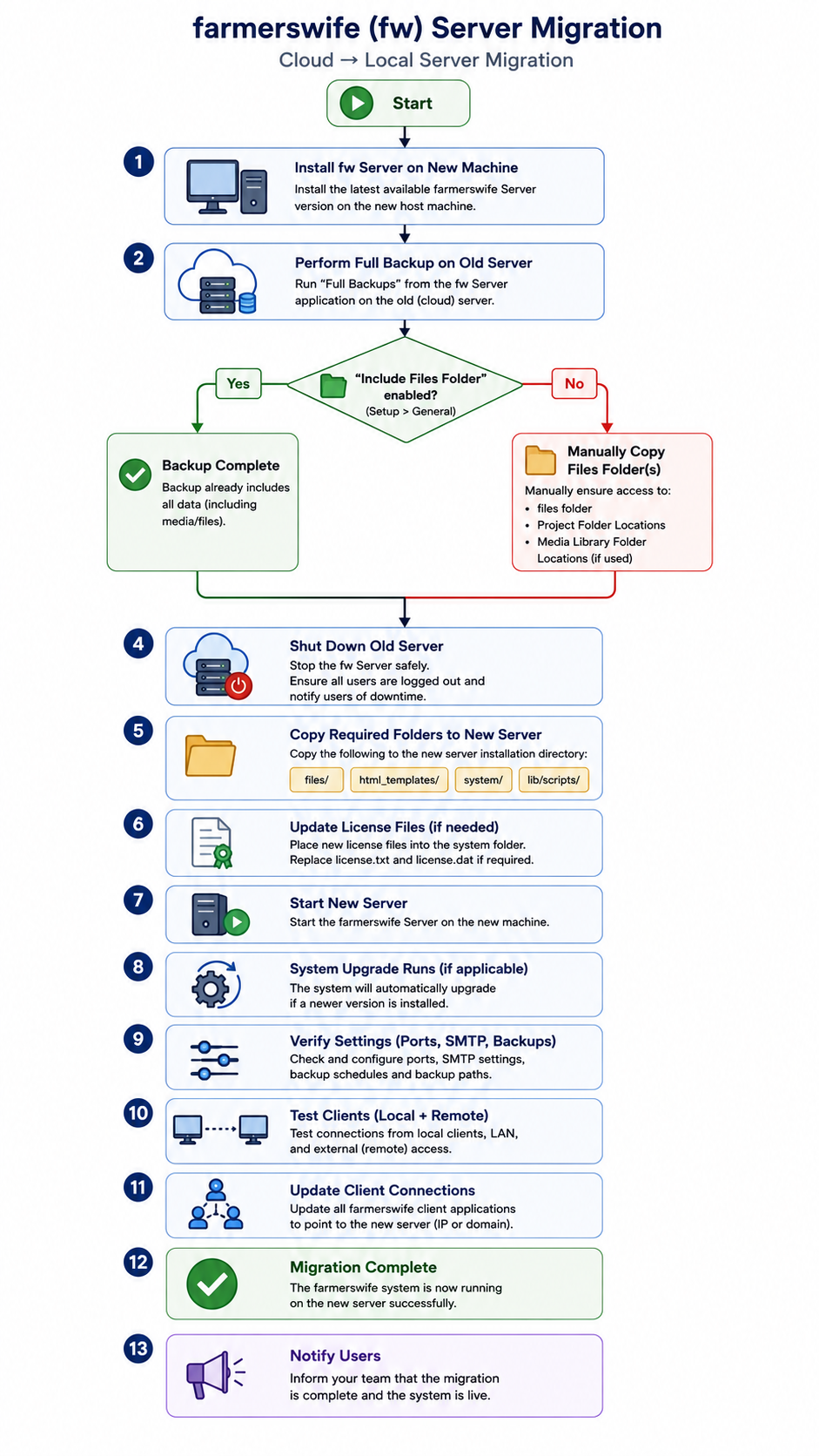
Steps to migrate your farmerswife Server from a cloud-hosted environment to a local on-premise machine (Windows, Mac, or Linux)
1. Client - Prepare Local Server Environment
Install the farmerswife Server on your local machine, matching the current version of the cloud hosted server
Recommended: install on a dedicated non-OS disk
Suggest pre-migration date
Suggest migration date
2. fw - Perform Full Backup (Cloud Server)
Access your cloud-hosted fw Server
Run “Full Backup”
Include the Files Folder
This creates a complete backup of the farmerswife Server directory
- Agree on pre-migration date
- Agree on migration date
3. fw - On migration date
Ensure all users are logged out
Notify users of downtime
- Stop the farmerswife Server safely
4. fw - Transfer Data to Local Server | Client
Copy the following from cloud environment to local server:
files/html_templates/system/lib/scripts/
➡️ Ensure:
Large file transfers are complete and verified
File permissions are preserved where required
5. Update License (if required)
Moving from cloud → local often requires a new license
Place new license files into:
system/Replace:
license.txtlicense.dat
6. Start Local Server
Launch the farmerswife Server locally
System will auto-upgrade if running a newer version
7. Verify & Configure Settings (Local Environment)
Go to:
Setup > General
Network & Access (Important change from cloud access and config details → local)
Update:
Ports (Server, HTTP, Web Client, API)
URL to Server (remove cloud domain if used)
Ensure firewall/router rules allow LAN (and WAN if needed)
Email (SMTP)
Reconfigure if cloud SMTP differs from local network
Send a test email
Backups
Update backup paths to local storage
Ensure:
Full Backup Folder is valid (not red)
Paths are short and accessible
Storage Paths
Verify:
filesfolder path is correct locallyAny previously mounted cloud storage is replaced with local paths
Other
PDF Print Export → update repository path if needed
8. Test Client Connections
Connect via:
Local machine (direct)
LAN clients
External access (if configured via VPN or port forwarding)
9. Update Client Configurations
Update all farmerswife Clients to connect to:
Local server IP or hostname
New domain (if applicable)
10. Go Live (Local Server)
Confirm:
All users can connect
Files are accessible
Performance is stable
Inform the team that thesystem is now running locally
Was this article helpful?
That’s Great!
Thank you for your feedback
Sorry! We couldn't be helpful
Thank you for your feedback
Feedback sent
We appreciate your effort and will try to fix the article