There are two types of licenses: Advanced and Web/Collaboration User.
To see how many Advanced and Web licenses you have and how many are left, please follow these steps:
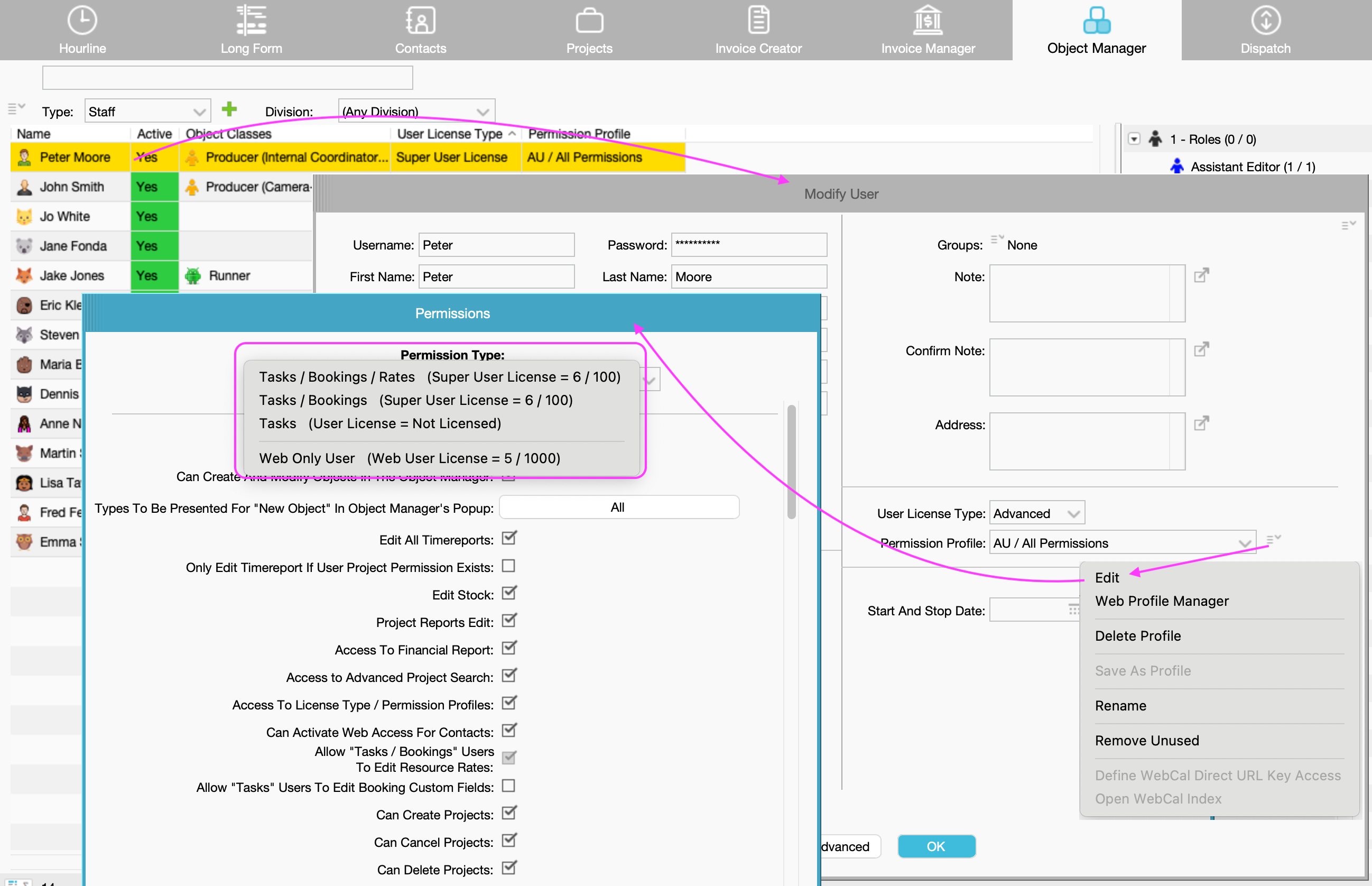
- In Object Manager, search for a User who is an Advanced User and double click to access the Modify User window.
- Go to the menu icon appearing to the right of the Permission Profile tab and click Edit.
- Click on the Permission Type tab at the top of the window to expand the information:
Note for Clouded Customers: When checking your user count, you will always see +1 more license available and in use than what you actually purchased. We add this extra AU seat completely free of charge so the farmerswife Support team can connect and assist you.
For example: If you bought 10 licenses, your system will show a total limit of 11. When you count your active staff in the Object Manager, you will find your 10 users because the 11th seat is hidden and reserved for Support.
Permission types
The system splits the AU into 3 lines based on permission levels (but still count as AU):
- Tasks/Bookings/Rates
- Tasks/Bookings
- Tasks
And the last line is for WU count.
In the example above the license enables access to 100 AU and 1,000 WU, from which 6 AU and 5 WU are in use. But what about the "Not Licensed" info next to the third line?
The "Not Licensed" Display Limitation:
Formerly, Task Users were counted completely separately. Now that they are part of the unified AU pool, this dropdown menu has a visual limitation and cannot combine them accurately.
Because of this, the image above only reflects your active AU configured under any of the first two permission types. In order to know how many users have the third permission type, you will need to check in the Object Manager - See below how to confirm if your AU license also has some TU in the count and get a precise total...
How to get a precise count of your license seats:
Use the Object Manager, to find out who is using a license and the type of license.
From version 7.1 onwards, you can display the User License Type and Permission Profile columns in the Object Manager.
Counting Advanced Users:
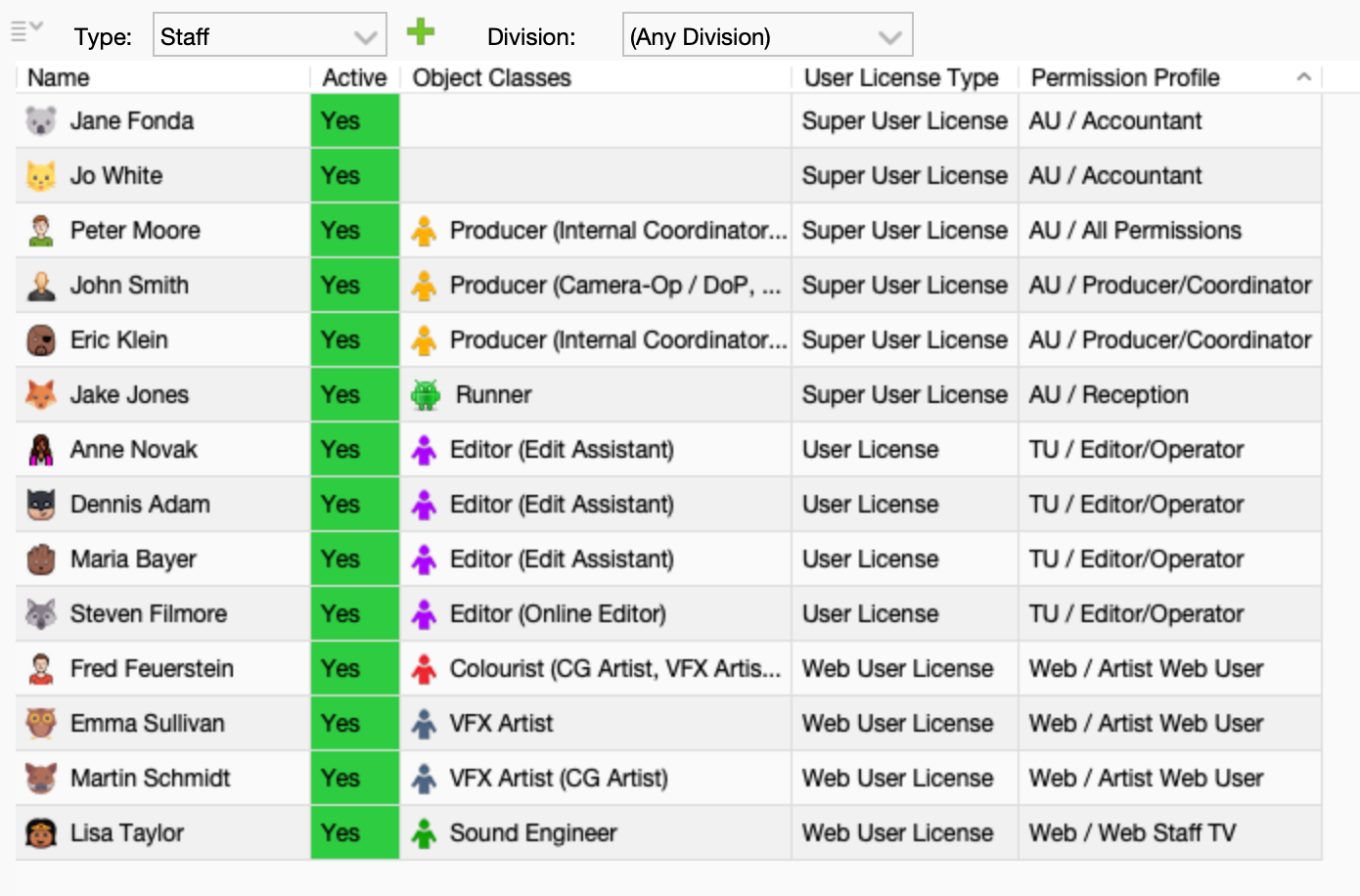
Simply click on the User License Type column header to sort your list. You can then easily count all your active Super User and Task User together —as both types are counted toward your total AU license.
Counting Web Users:
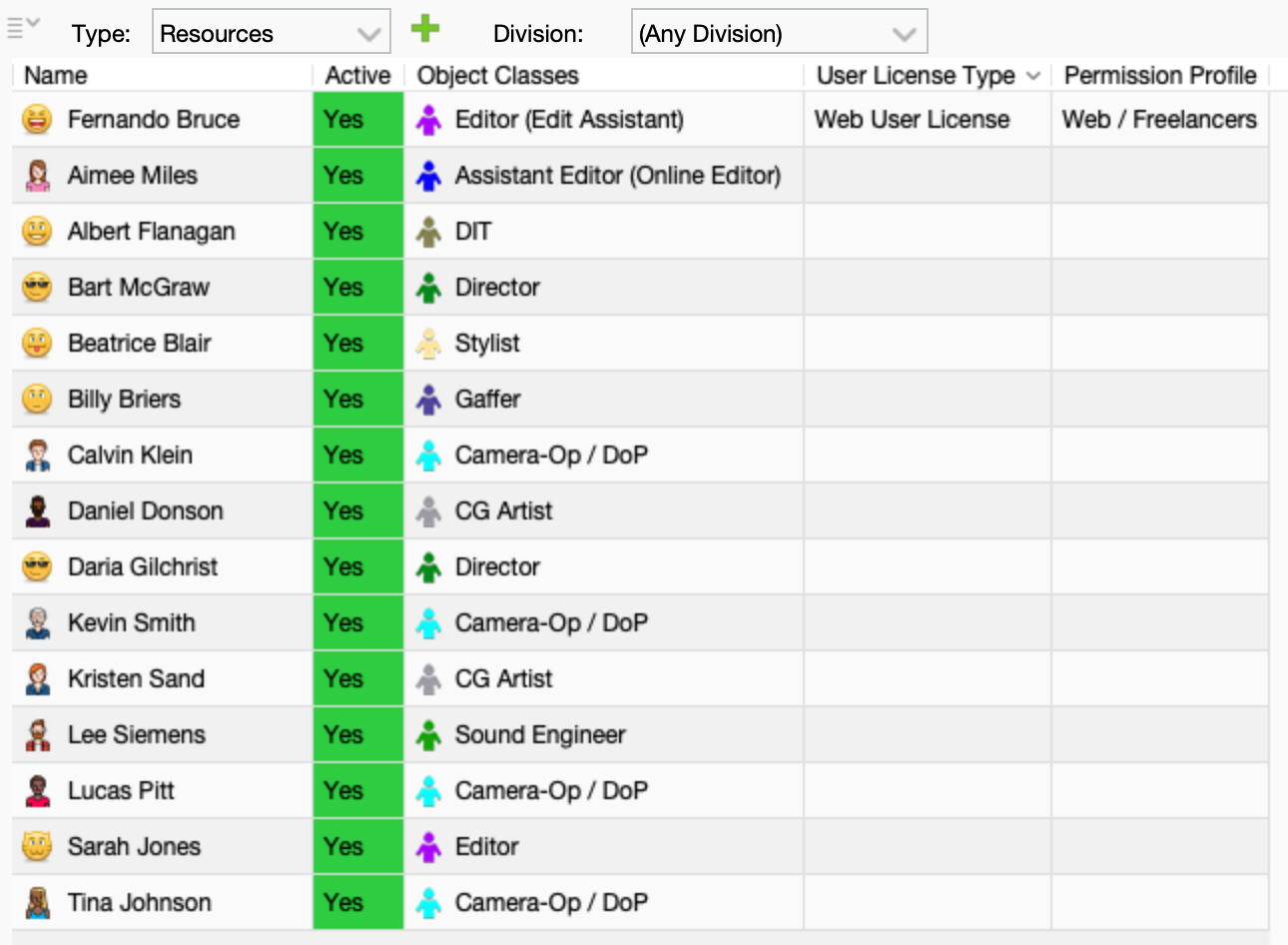
A WU license is used by both User types (Staff) and Resource types who access the system exclusively via the Web Client or Mobile app.
Therefore in order to find out who is using a WU license, you need to look at the User License Type column and search in two places:
- Type Staff (see pic above)
- Type Resources (see pic below)
Was this article helpful?
That’s Great!
Thank you for your feedback
Sorry! We couldn't be helpful
Thank you for your feedback
Feedback sent
We appreciate your effort and will try to fix the article