Every Budget in farmerswife has a common Structure of Categories & Accounts used to organise financial data. This is compiled during the setup of the Budgeting Module of your database.
TABLE OF CONTENTS
- Preparing the Structure
- Adding A Structure To Your Database
- Changing or Modifying A Budget Structure
- Example Structures
Preparing the Structure
The structure can be added directly in the server app, or by importing a prepared CSV file with the list of numbered categories. If you are a cloud-hosted customer, your structure will be added to your database by a member of the farmerswife Support team. If you have any queries on this, please contact support@farmerswife.com.
Before entering the structure, it is good to think about how you'd like this to be entered. You should include all possible Categories & Accounts. You may want to design this as a spreadsheet, to save as a CSV file for importing.
Categories are the first level of the structure. Accounts are the secondary level of the structure.
You do not need to use both levels in a Budget Structure, however if you only plan on using one level, you would typically only use Categories.
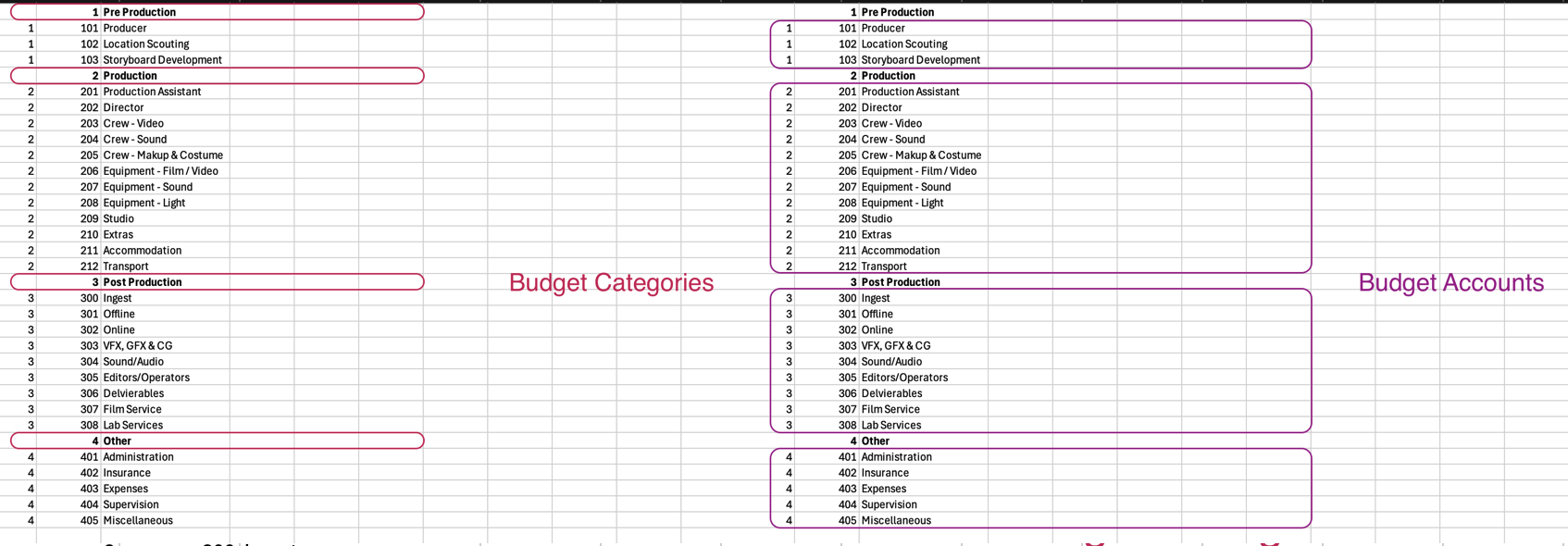
Please Note: It is possible to have multiple levels of Accounts (level 3, level 4, etc) but having these will give you limitations when exporting your Budgets/Quotes. Please discuss with farmerswife Support before going ahead with this type of structure.
Adding A Structure To Your Database
Adding a designed structure to your database will need to be executed on the server application. As noted, if you are a cloud-hosted customer, your structure will be added by a member of the farmerswife Support team.
Please Note: This section is designed for self-hosted customers who have access to their server application.
Importing A Structure from CSV
If you have prepared a Structure as a CSV (through Excel/Google Sheets/Numbers), you can import this in the Budget Settings on the Financial tab of the server application.
Please Note: both Category and Account numbers must be unique within the structure.
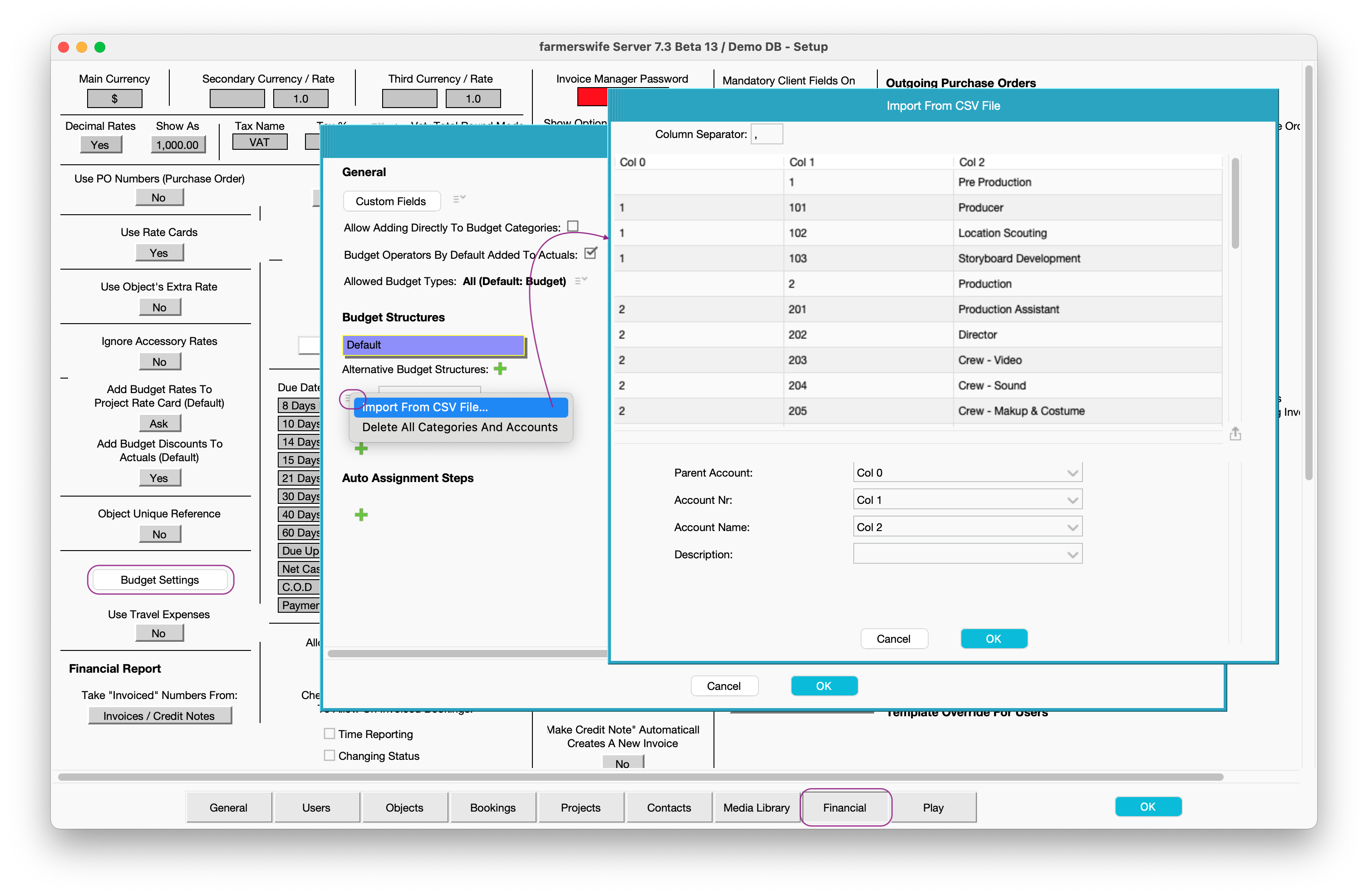
Go to: Financial > Budget Settings > Import From CSV File.... This will allow you to navigate to the saved CSV containing the Budget Structure. Once loaded you will have the option of setting:
- Column Separator - this is the delimiter used on the CSV and will depend on your computer's regional settings. Typically this will be a comma (,) or semi-colon (;).
- Parent Account - typically column A of your CSV, used to define which Category an Account will sit under. If a line in the CSV represents a Category, column A should be blank on your CSV.
- Account Nr - typically column B of your CSV, used to define the Category number.
- Account Name - typically column C of your CSV, used to define the Category/Account Name.
- Description - typically column D of your CSV, used to define the description of the Category or Account. This is not seen in the client-side Budget Structure. It is not necessary to set a Description.
Once you set these on the import prompt, click OK to import the Categories & Accounts.
Setting the Structure without Importing a CSV
You can set up a new Structure without importing from a CSV file. To start, click the green + button under Account Nr. This will open a prompt window for you to enter a number for the Category.
Please Note: both Category and Account numbers must be unique within the structure.
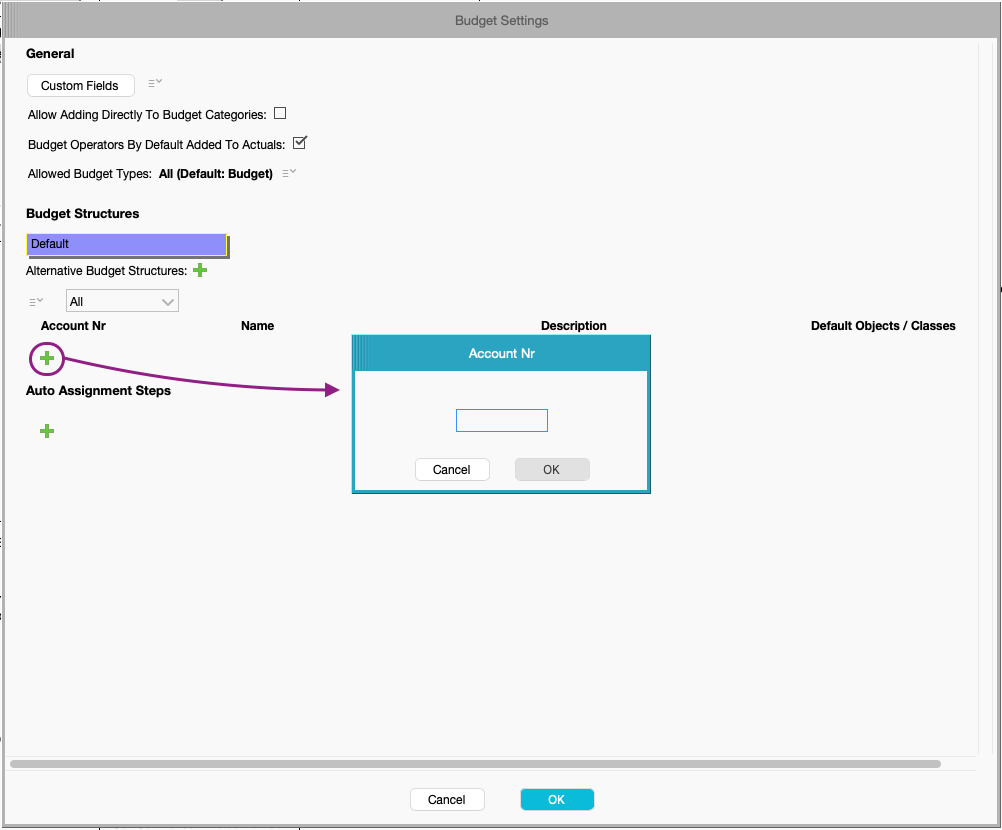
After setting the Category/Account Number, you will be asked by the Category/Account Name, followed by the Category/Account Description. It is not necessary to set a Description.
Once you have added a Category, you can add another Category or start to add an Account:
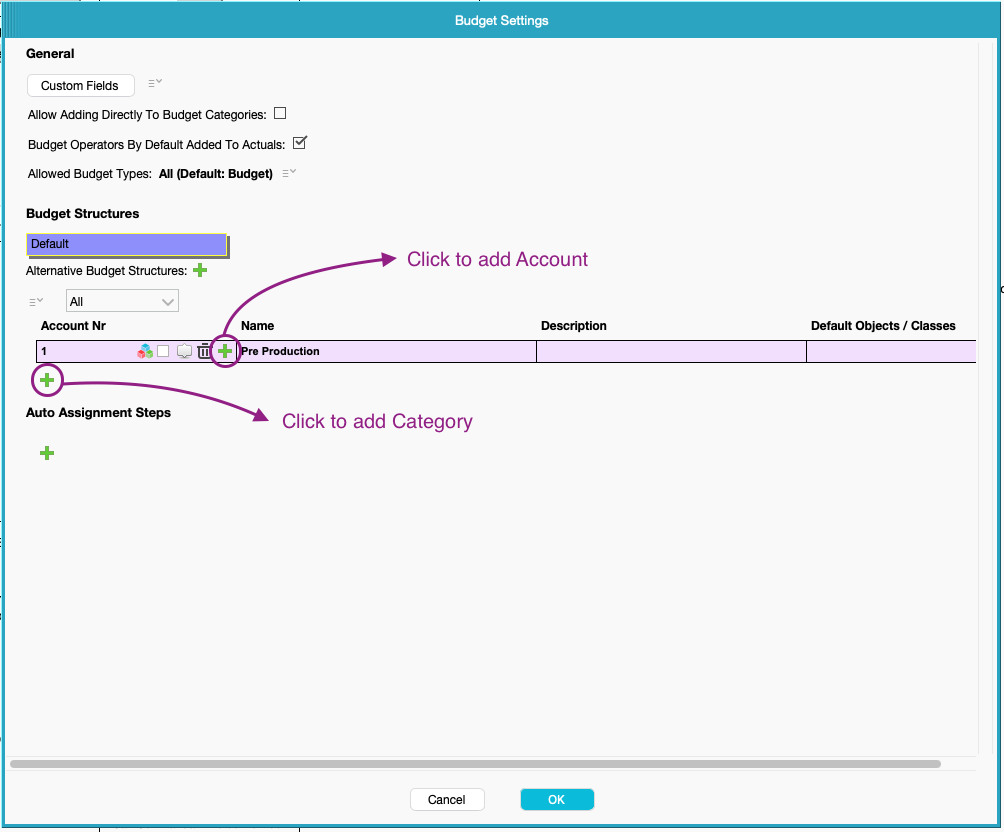
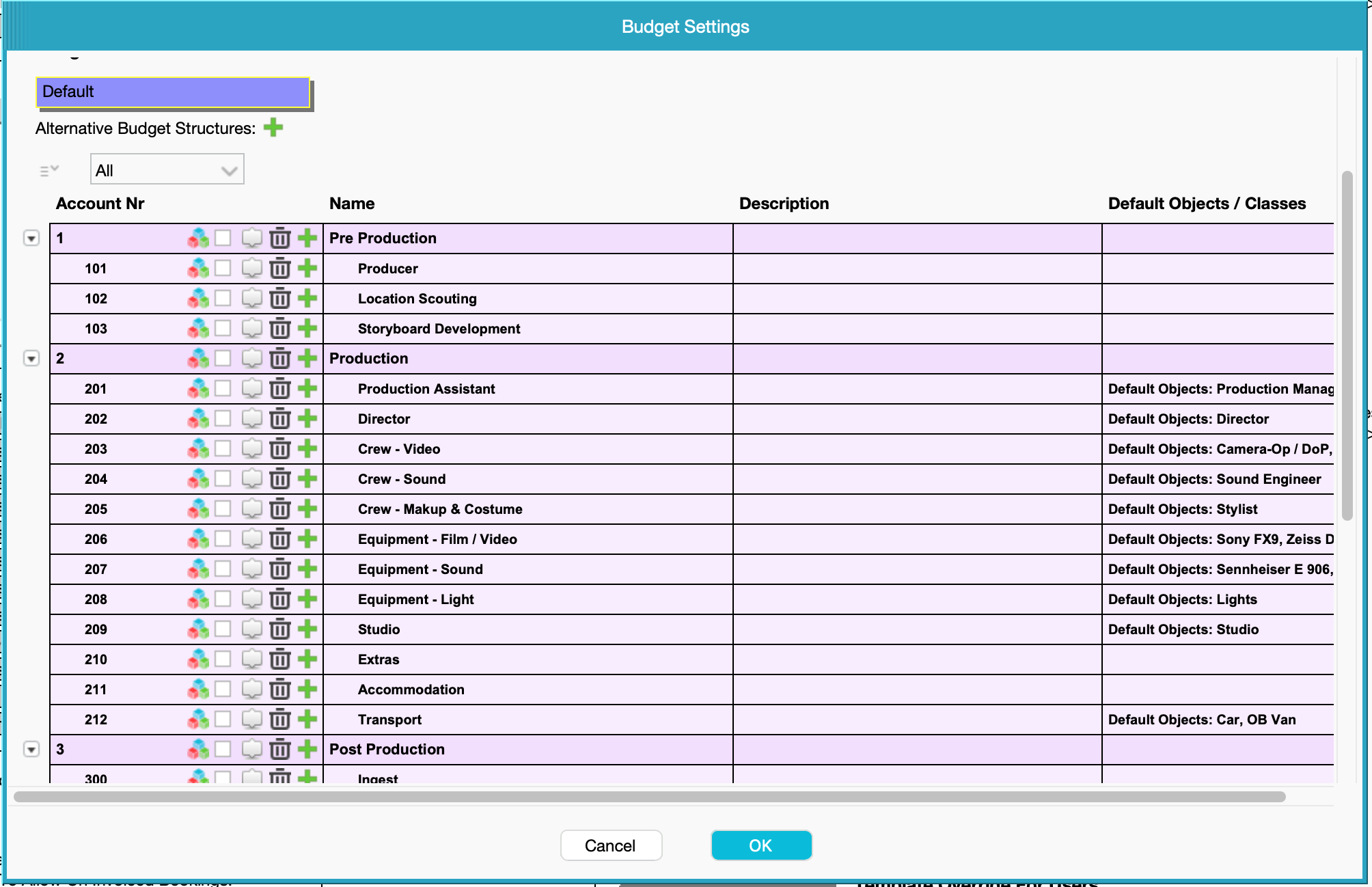
Once the structure is set manually or via import, you can use the drop-down menu above Account Nr to display:
- Categories - this will collapse any open Accounts and only show the Categories in the Structure
- Accounts - this will show all Accounts in the Structure
- All - This will show all Categories and all Accounts
Changing or Modifying A Budget Structure
Once the structure has been set up, you can change or modify this on the server application. For more information on how to do this, please see our article on Changing Or Modifying A Budget Structure.
Example Structures
Attached to this article are a number of CSVs giving some examples of possible Budget Structures, which you may want to use.
Was this article helpful?
That’s Great!
Thank you for your feedback
Sorry! We couldn't be helpful
Thank you for your feedback
Feedback sent
We appreciate your effort and will try to fix the article