After setting up a Budget Structure in farmerswife you may need to alter or modify it. This article details how you can do this, but if you have any queries, then please contact support@farmerswife.com.
Please Note: this article is for those that have access to the Server application. If you are a cloud-hosted client, please speak to farmerswife Support.
If you are yet to set up a Budget Structure, please see our article on Creating A Budget Account Structure for more information.
TABLE OF CONTENTS
Modifying General Budget Settings
There are multiple settings you may want to update in the Budget Settings. The below is taken from the Server Side Settings section of our article on Budget Settings.
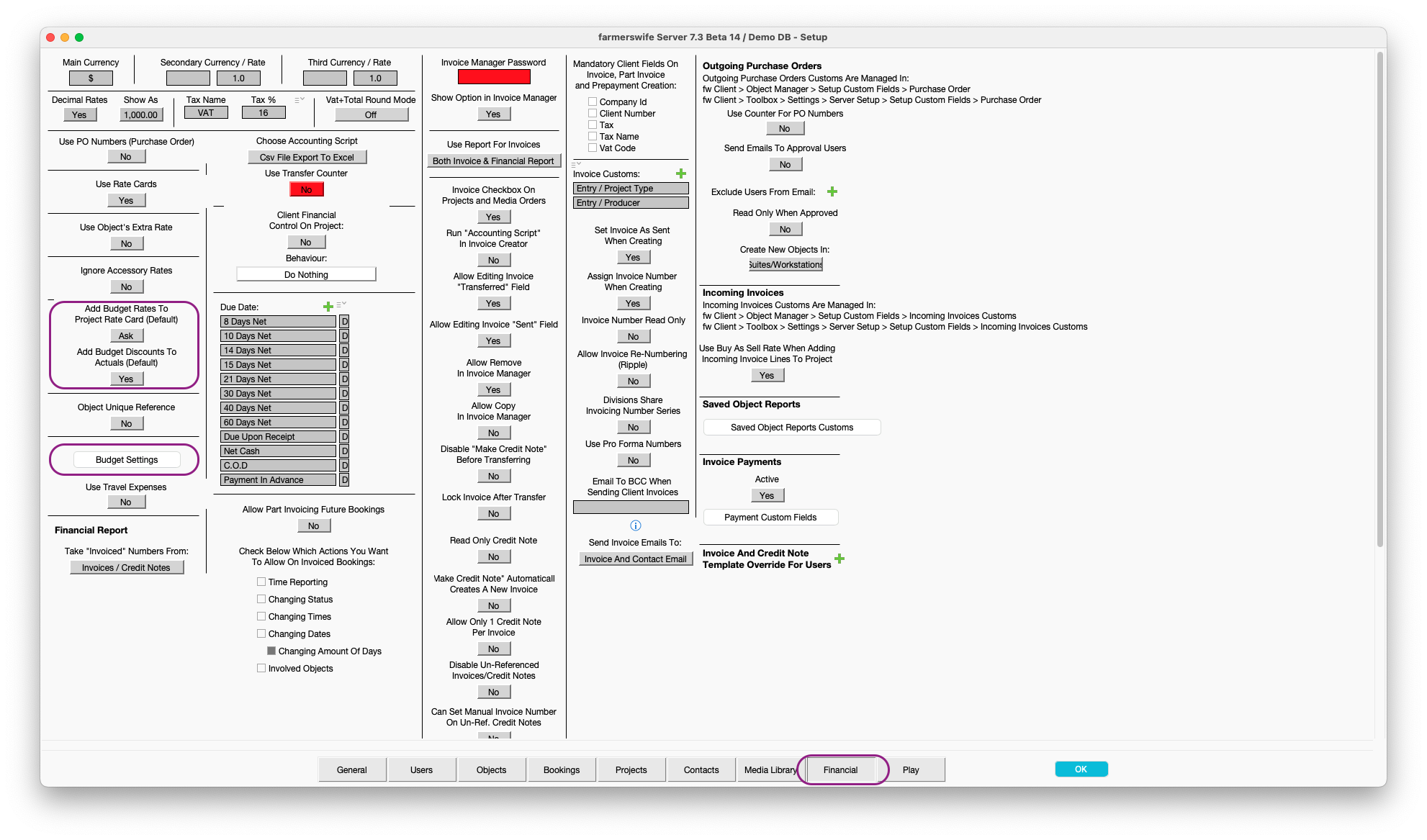
Add Budget Rates To Project Rate Card (Default)
Select the default option to be applied if rates are manually modified in the Active Budget.
- Always - will add the new rates to the Project Rate Card without a warning.
- Ask - will first ask for confirmation.
- Never - will not add the new rates to the Project Rate Card.
The setting can then be overridden per Project in the Client application's Budget Module. See further details in the Adding Budget Rates To Rate Card article.
Add Budget Discounts To Actuals (Default)
Enable this option if discounts added to the Active Budget should also be applied to Actuals when they get attached to lines with a discount.
The setting can then be overridden per Project in the Client application's Budget Module. See further details in the Adding Budget Discounts To Actuals article.
Accessing the Budget Structure
On the Server application, head to the Setup from the main server application and open the Financial tab. From here you will see the Budget Settings button on the left hand column.
Please Note: Changes made on the server Budget Settings will apply to all existing Budgets.
Adding a Budget Category or Account
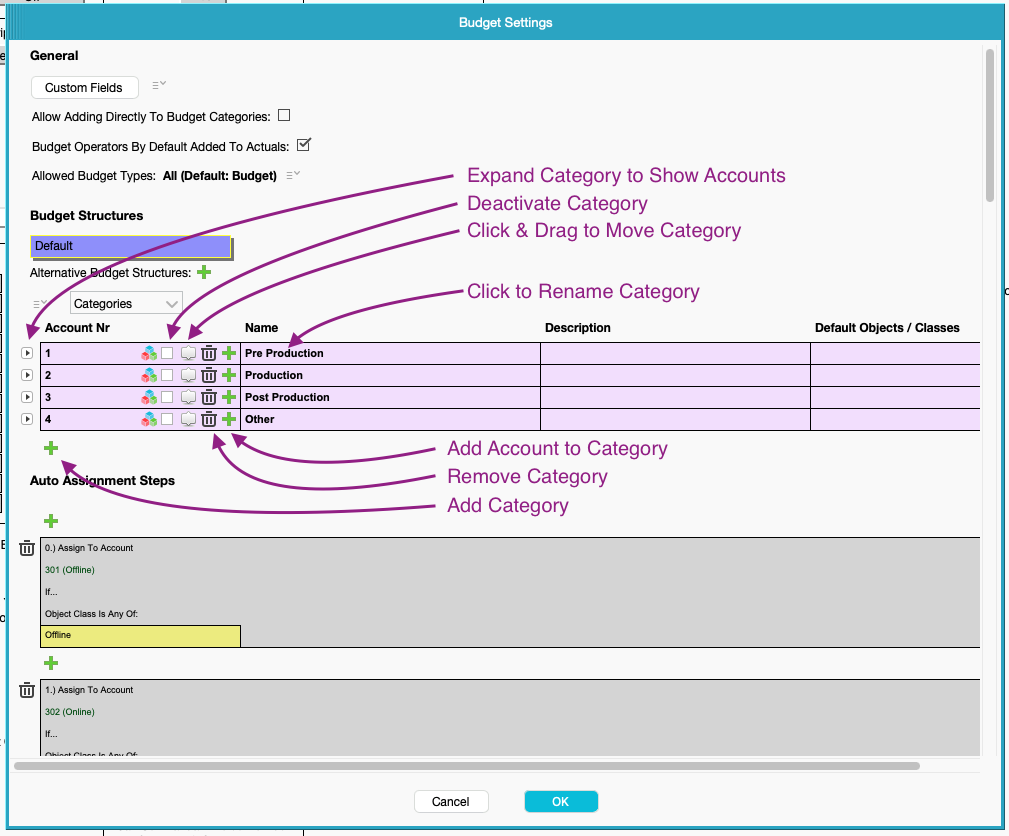
To add a Category, click on the green + symbol on the bottom of the list of existing Categories. This will prompt you to first add a number, a name, and then a description for the new Category.
To add a new Account, click on the green + symbol on the Category line that you add to wish the Account to. Sub-Accounts can be added by clicking the green + on the Account line that you wish to add the Sub-Account to. This will provide prompts for number, name and then description of the new Account.
Please Note: both Category and Account numbers must be unique within the structure, and cannot be altered once set. Name & Descriptions can be altered later.
Altering the Order of Categories or Accounts
The order of Categories or Accounts can be changed, by selecting the Move button (between the checkbox & trashcan symbols), and dragging up or down in the list of Categories or Accounts.
Deactivating a Category or Account
On each Category or Account line, there is a checkbox icon. When selected, this will deactivate the line, and it will not be visible on new Budgets in the Client Application.
In an existing Budget, items that were listed under a Category or Account prior to it being deactivated on the server, will still show the Category or Account. However, you will not be able to add any further lines to the deactivated Category or Account.
Renaming a Category or Account
Clicking on the name of the Category or Account will allow you to rename it. However, it is advised that this is only used to correct spellings, as any name changes to Categories or Accounts will be applied to all existing budgets. Renaming a Category or Account for a new purpose, could cause confusion on reports.
Example:
Category 101 is labelled as Offline. On a budget, Offline costs are listed under Category 101. The Category is then renamed to Camera Hire. On the existing budget, Offline costs will then be listed under Category 101 - Camera Hire.
Altering the Description for a Category or Account
Clicking on the existing Description will allow you to alter it.
Renumbering a Category or Account
It is not possible to renumber a Category or Account once it has been set. If you have any queries about this, please contact support@farmerswife.com to discuss further.
As a workaround you may wish to deactivate the Category or Account with the number that needs altering, and then create a new Category or Account with the altered number, before using the Move button to drag into the correct position in the order.
Removing a Category or Account
Clicking the Trashcan icon on the Category or Account that you wish to remove, will remove it from the structure.
If you have Categories or Accounts that you no longer wish to use, but that have been used on existing Budgets, it is advised that they are Deactivated over being Deleted.
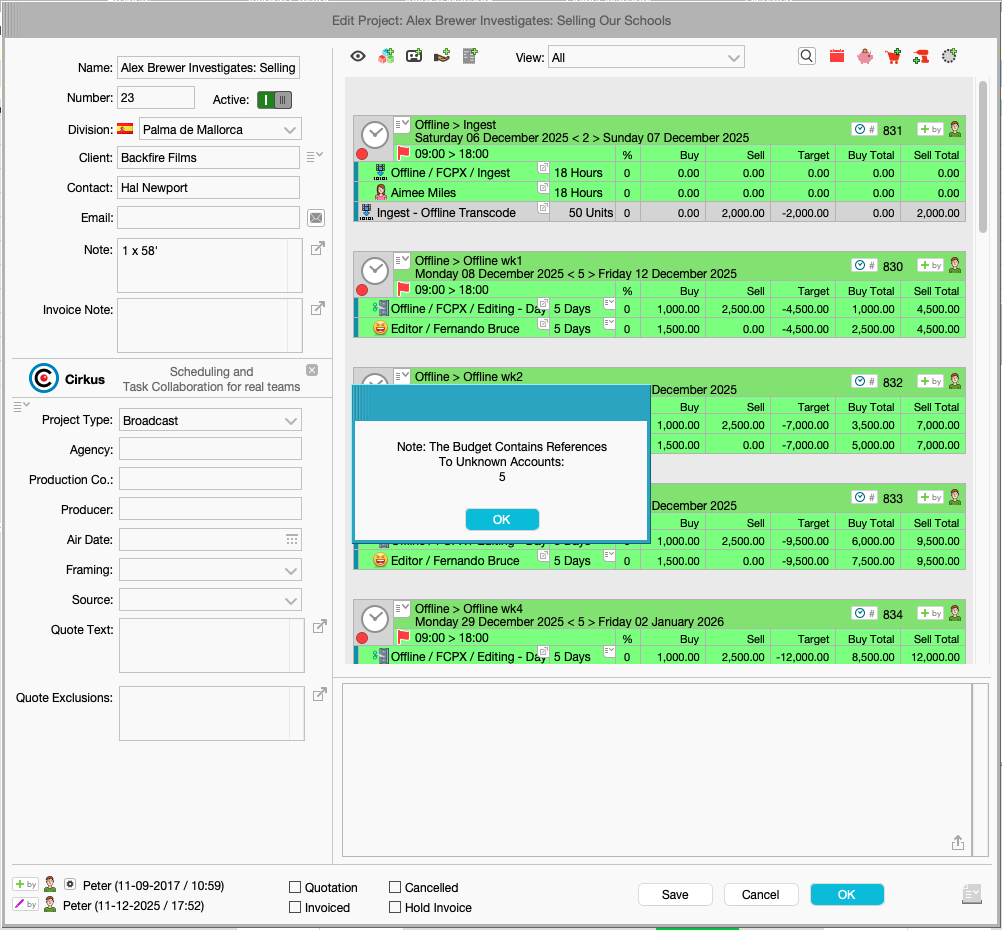
Please Note: Any Categories or Accounts that are removed, will be removed from all existing Budgets. This will then show a prompt on entering the Budget Module on a Project, if there were items listed on a Budget under the Category or Account prior to it being removed (see below).
Was this article helpful?
That’s Great!
Thank you for your feedback
Sorry! We couldn't be helpful
Thank you for your feedback
Feedback sent
We appreciate your effort and will try to fix the article