The "Email Project Booking Report" window has been redesigned and extended. The flow is the same (open from Booking → Other → Email Project Booking Report), but you can now pick which involved rows are emailed, auto-populate recipients from those rows, and manage email templates directly from the dialog.
TABLE OF CONTENTS
- 1. New Window Layout
- 2. Recipients
- 3. Involved Panel (new)
- 4. Email Template Selector — Now With Template Management
- 5. Buttons
- 6. New Template Variables — Per-Involved Lines
- 7. Other Improvements
1. New Window Layout
The dialog is larger and split into two top areas:
- Left: Recipients, Report Template, Email Template, Subject, Body.
- Right (new): Involved panel — a scrollable list of all booked users and resources on this booking, each with a check icon. Use it to choose which involved entries are emailed and (optionally) used as recipients.
At the bottom: Cancel, Send, and the new Open button.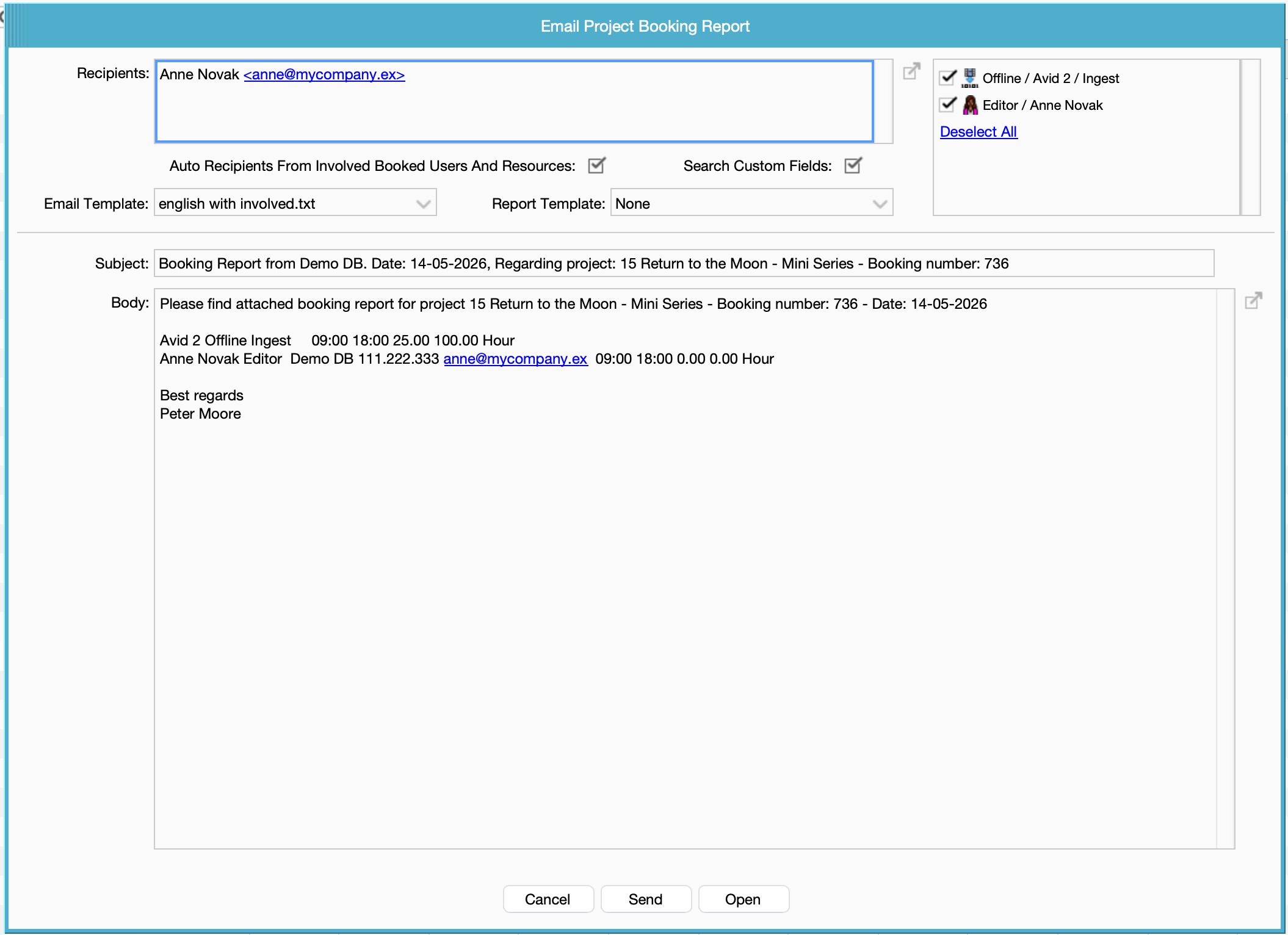
2. Recipients
- The Recipient field is now a multi-line text area, so long recipient lists are easier to read and edit. Separator remains
;. - The existing green [+] button (now tooltipped "Manually Add All Involved") still adds all involved users/resources to the recipient list in one click.
New: "Auto Recipients From Involved Booked Users And Resources"
A new checkbox above the involved panel. When enabled:
- The Recipient field is filled automatically from the involved entries currently checked in the right-side panel.
- The Recipient field becomes read-only (driven by the selection).
- Toggling rows on/off in the involved panel updates the recipient list live.
This setting is remembered per user.
New: "Search Custom Fields"
A second checkbox that appears only when Auto Recipients is on. When enabled, farmerswife also collects any email address found in custom fields of the involved contacts (any custom-field value matching an email pattern is added).
This setting is remembered per user.
3. Involved Panel (new)
The right-side panel lists every involved row on the booking. For each row you can:
- Click the icon to toggle that involved entry on/off for the email.
- Use the Select All / Deselect All link at the bottom of the list.
The selected set drives two things:
- The auto recipient list (when Auto Recipients is on).
- The per-involved expansion of the new
<Start Involved>template tag (see section 6).
4. Email Template Selector — Now With Template Management
The Email Template selector now includes a Server Setup sub-menu (visible only to users with Server Setup access):
- New duplicates the currently selected template under a new name and switches to it. If the name already exists, you are asked to confirm overwrite.
- Modify opens the current template in a full-screen text editor for in-place editing; Save writes back to the server.
- Delete removes the currently selected template (disabled when only one template remains).
The currently selected template is now remembered as the user's default for next time the dialog is opened.
5. Buttons
The action row now contains three buttons (instead of two):
| Button | What it does |
|---|---|
| Cancel | Close the dialog without sending. |
| Send | Send the email through the farmerswife outgoing mail server, with the PDF Report attached (when a Report Template is chosen). Same behaviour as the previous "OK" button. |
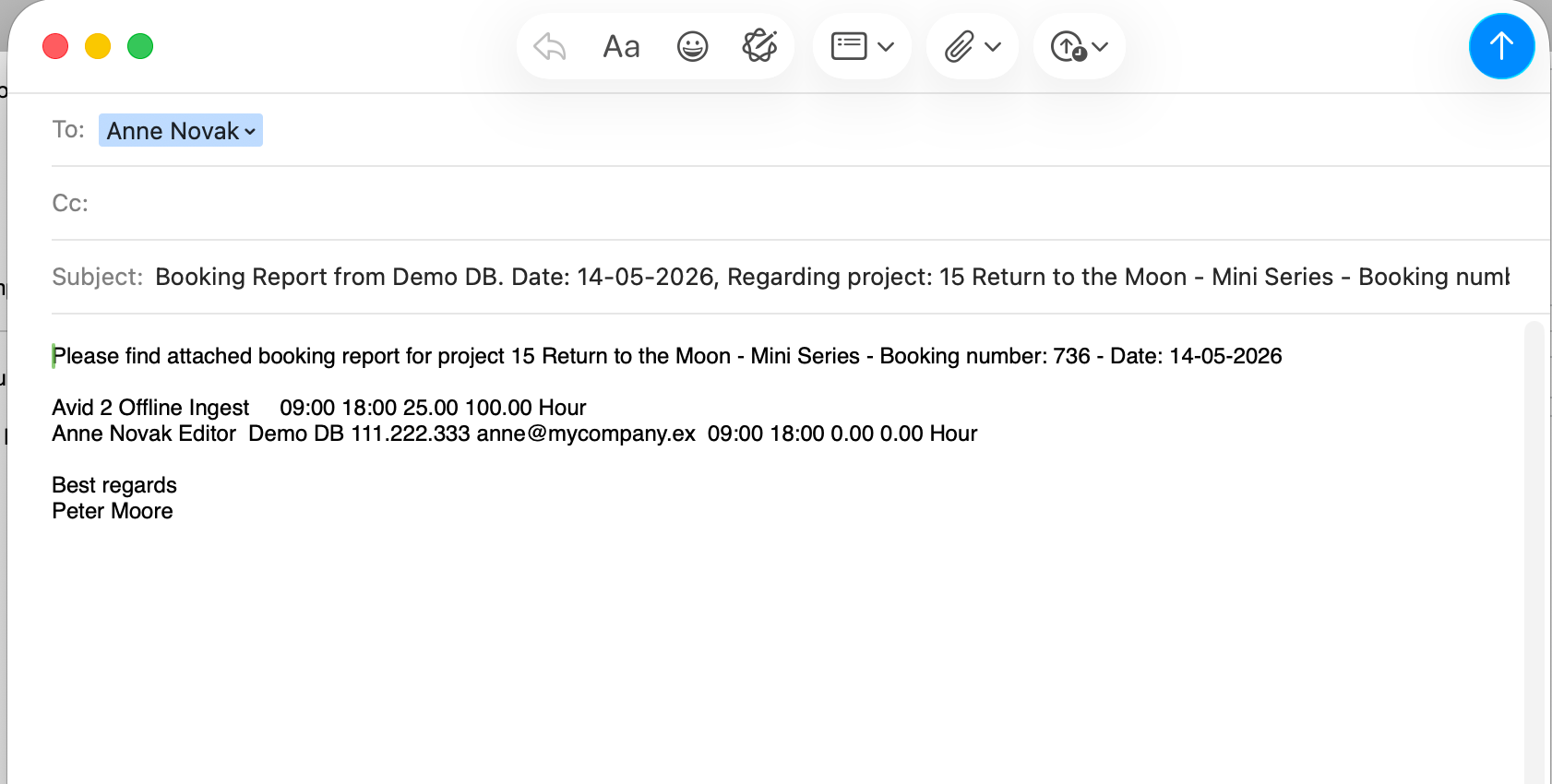
| Open (new) | Opens the email as a draft in your local default mail client (Outlook, Apple Mail, Thunderbird, …) using a mailto: link, so you can review/edit it before sending. Available on macOS, Windows and Linux. Note: the PDF Report is not attached when using Open, because mailto: links cannot carry attachments — use Send if you need the PDF attached. |
6. New Template Variables — Per-Involved Lines
Email templates now support a special line tag that expands once per selected involved entry.
Inside the Body of a template, add a line that starts with <Start Involved> and put any of the new involved-specific placeholders after it. That line is rendered once for each involved row that is checked in the involved panel.
Available <INVOLVED_*> keys
| Key | Meaning |
|---|---|
<INVOLVED_OBJECT_NAME> | Name of the involved object (user/resource). |
<INVOLVED_CLASS_NAME> | Class name of the involved object. |
<INVOLVED_ACTIVITY_NAME> | Booked activity for that involved row. |
<INVOLVED_OBJECT_COMPANY_NAME> | Company name (for contact-style objects). |
<INVOLVED_OBJECT_MOBILE_NUMBER> | Mobile number. |
<INVOLVED_OBJECT_EMAIL> | Email address. |
<INVOLVED_NOTE> | Booking note for that involved row (newlines collapsed to ". "). |
<INVOLVED_TIME_IN> | Effective in time for that involved row. |
<INVOLVED_TIME_OUT> | Effective out time for that involved row. |
<INVOLVED_BUY_RATE> | Formatted buy rate. |
<INVOLVED_SELL_RATE> | Formatted sell rate. |
<INVOLVED_RATE_UNIT> | Hour or Day, depending on the row. |
<INVOLVED_CUSTOM_FIELD:my custom field name> | Value of a CB-object custom field, looked up by label. |
New shipped example: english with involved.txt
A new template is shipped by default in the server's booking_report_email folder. It demonstrates all the new keys and looks like this:
<Start Subject - DONT EDIT THIS LINE>Booking Report from <SENDER_COMPANY_NAME>. Date: <BOOKING_DATE>, Regarding project: <PROJECT_NUMBER> <PROJECT_NAME> - Booking number: <BOOKING_NUMBER><Start Body - DONT EDIT THIS LINE>Please find attached booking report for project <PROJECT_NUMBER> <PROJECT_NAME> - Booking number: <BOOKING_NUMBER> - Date: <BOOKING_DATE><Start Involved><INVOLVED_OBJECT_NAME> <INVOLVED_CLASS_NAME> <INVOLVED_ACTIVITY_NAME> <INVOLVED_OBJECT_COMPANY_NAME> <INVOLVED_OBJECT_MOBILE_NUMBER> <INVOLVED_OBJECT_EMAIL> <INVOLVED_NOTE> <INVOLVED_TIME_IN> <INVOLVED_TIME_OUT> <INVOLVED_BUY_RATE> <INVOLVED_SELL_RATE> <INVOLVED_RATE_UNIT>Best regards<SENDER><VAR_EMAIL_FOOTER>Only involved rows that are checked in the involved panel at send time are rendered.
7. Other Improvements
- The outgoing-mail signature/footer (
<VAR_EMAIL_FOOTER>/ system mail footer) is now appended automatically to the body, consistent with other farmerswife outgoing emails. - Resolution of "name + email" for involved entries now prefers the Resource record over the User record, socontact-style resources correctly resolve to their contact email and company.
The following dialog settings are now persisted per user and restored next time the dialog opens:
- Default Email Template
- Auto Recipients From Involved Booked Users And Resources
- Search Custom Fields
Was this article helpful?
That’s Great!
Thank you for your feedback
Sorry! We couldn't be helpful
Thank you for your feedback
Feedback sent
We appreciate your effort and will try to fix the article