A Cash Discounts is a way to add a fixed figure discount to a project, or an invoice.
Adding to a Project
Cash Discounts are added to specific Views on the Project. Although you can add Cash Discounts to any Project View, to ensure the Cash Discount comes through to your invoice from your project window, you should add it to the view that is used to process your invoices from. Most commonly, this will be called: To Invoice/Invoiced.
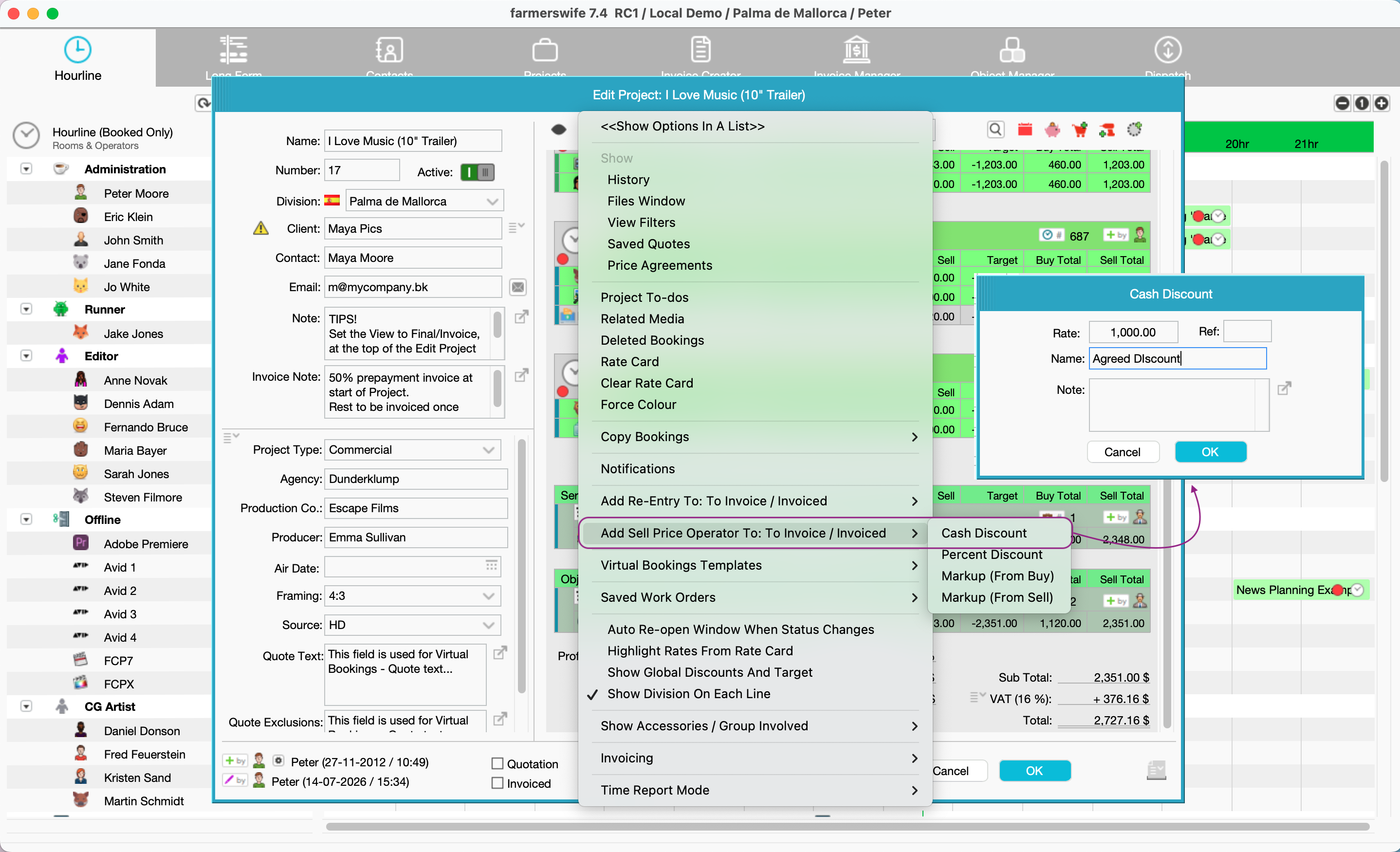
To add, ensure you are in the correct view on the project window. Then from the Eye menu, scroll down to: Add Sell Operator > Cash Discount.
This opens up the Cash Discount box, allowing you to enter the fixed amount you wish to discount by. The Name is the field that can be seen on the Project window, and the following invoice.
Pulling Into An Invoice
You can invoice a Cash Discount when invoicing after closing the project. And since 7.4, you can also invoice a Cash Discount via Part Invoicing.
If you are invoicing from a closed project, the Cash Discount line will appear on the final invoice created against the project.
If however, you wish to add the Cash Discount to a Part Invoice, the added Cash Discount will now appear as a line item.
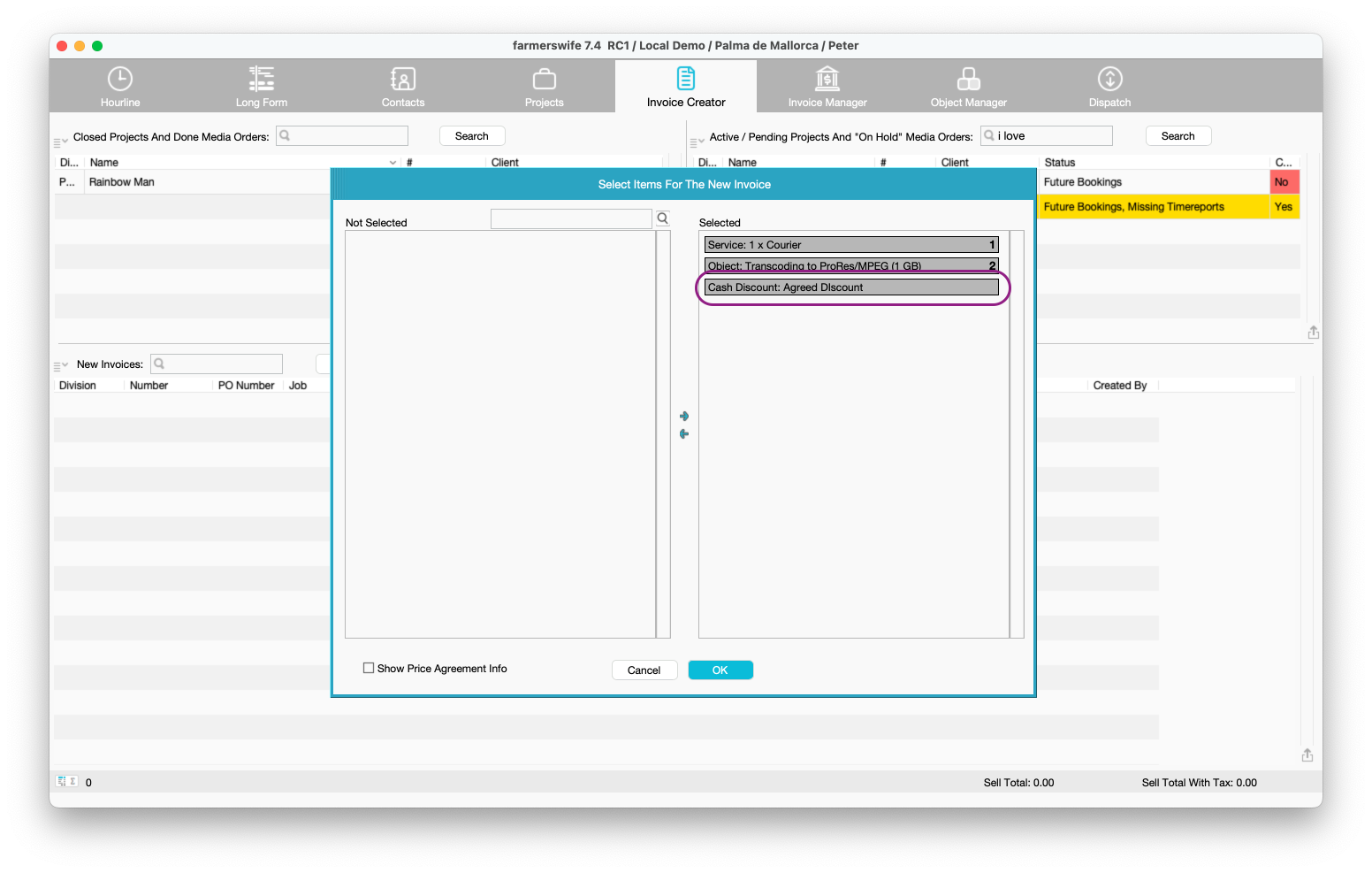
Much like other line items, you can choose to take through to the invoice by containing it on the Selected side. If you do not wish to invoice the Cash Discount on the particular Part Invoice you are creating, simply move the line item to the Not Selected side, and it will be available when creating your next Part Invoice.
Adding A Cash Discount To An Existing Invoice
You can also add a Cash Discount to an invoice, without having added it to the Project already.
On an existing invoice, use the menu to Add Un-Referenced Object. This will then open up a prompt window. In the window, select "Price Operator" as the Type. When adding the amount in the Sell box, you must use a negative figure. Again, the name is something that will be seen on the invoice for the client.
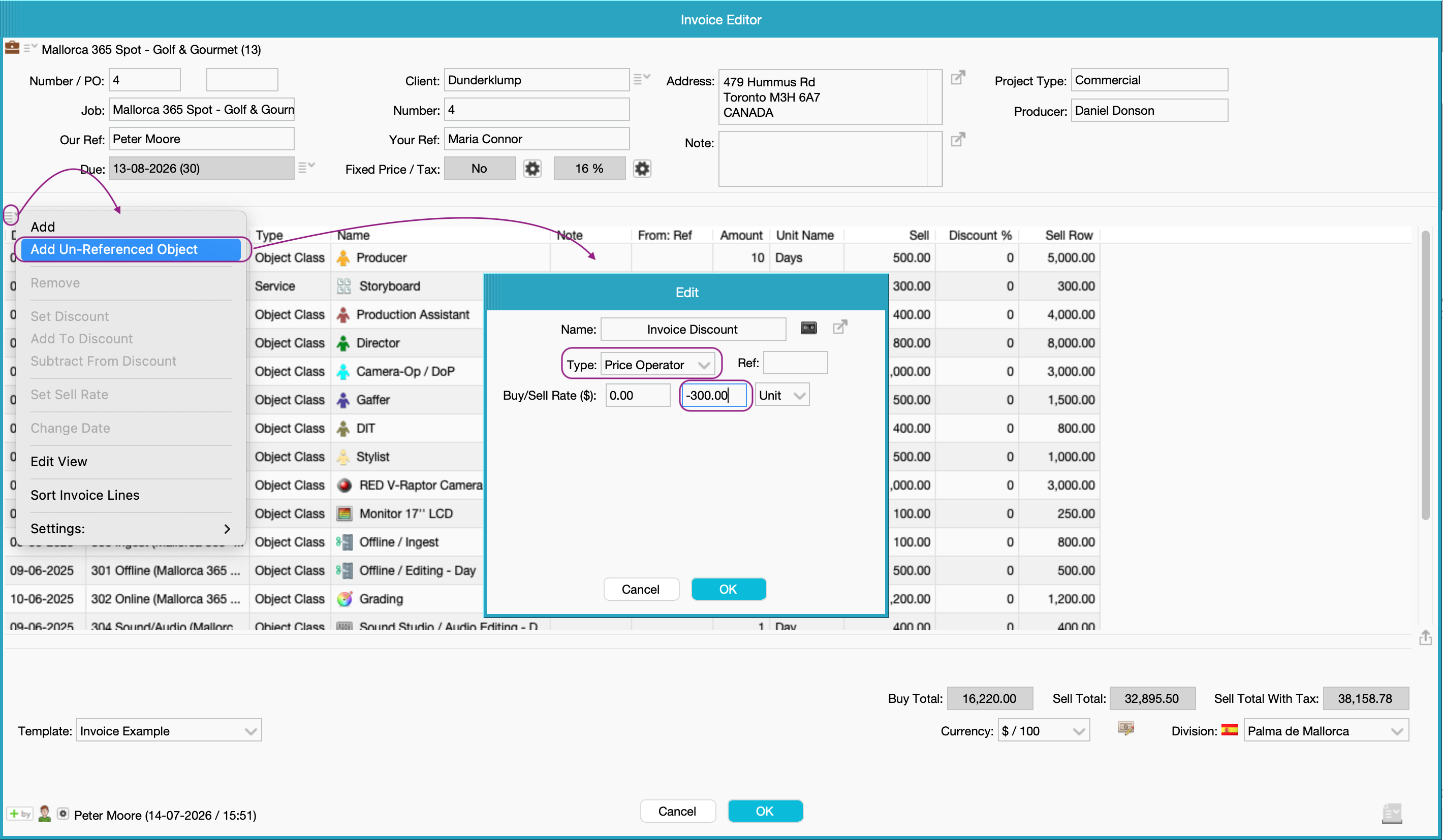
Once the Discount has been added, you can add a note to it by double-clicking the invoice line, and adjusting the Note field on the prompt that you will see.
Was this article helpful?
That’s Great!
Thank you for your feedback
Sorry! We couldn't be helpful
Thank you for your feedback
Feedback sent
We appreciate your effort and will try to fix the article