How Invoice Emailing Works
When an invoice is emailed from the Invoice Manager, farmerswife:
Generates a PDF using the selected Print Template.
Creates an email using the configured Invoice Email Template.
Determines the recipient(s) based on the Server Setup configuration and, if applicable, any Client-specific overrides.
Sends the email with the PDF invoice attached.
Optionally sends a BCC copy to an internal email address (for example, your accounting department).
Marks the invoice as Sent.
The recipient of the invoice depends on the configuration in the client contact:
| Option | Recipient(s) |
|---|---|
| Contact Email Only | Sends only to the Contact Person's email address. |
| Invoice Email Only | Sends only to the email address(es) entered in the client's Invoice Email field. |
| Invoice and Contact Email | Sends to the Contact Person (To) and the Invoice Email address(es) (CC). |
Server Configuration
For cloud hosted customer farmerswife will configure these details.
Before sending invoices by email, complete the following setup.
1. Configure the PDF printer
Install and configure a PDF printer on the server.
2. Enable and setup email functionality
Configure and enable the email settings.
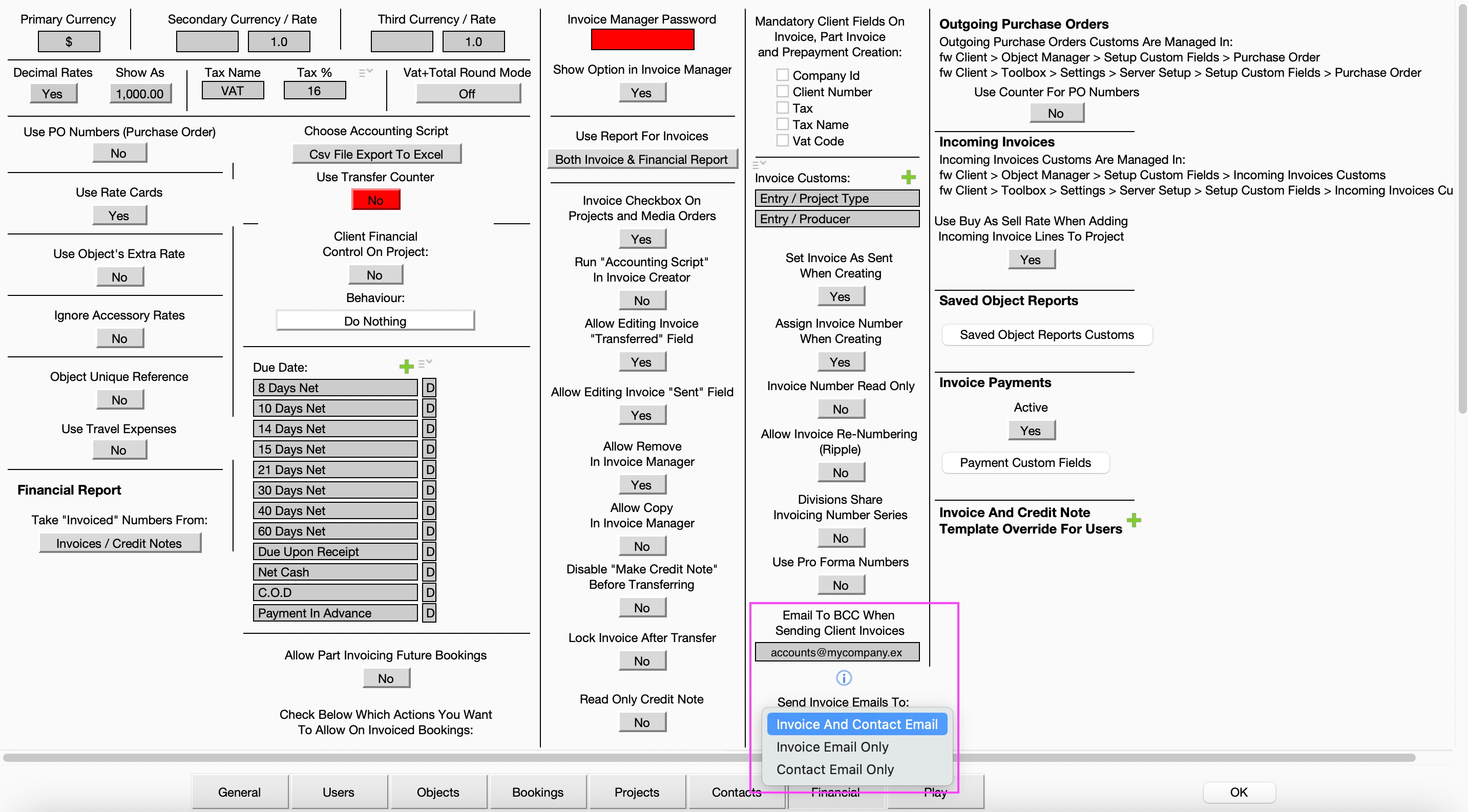
3. Configure Invoice Email Defaults in Server Setup > Financial
Configure the following settings:
| Setting | Description |
|---|---|
| Set Invoices As Sent When Creating | Select No. |
| Email to BCC When Sending Client Invoice | Enter a BCC email address (for example, your accounting department). |
| Send Invoice Emails To | Define which email address(es) should receive invoice emails by default. |
Configure Email Templates
The email text sent with invoices and credit notes can be customized.
You can download the default template at the end of this article, edit and send to support to apply to the server.
Navigate to the server installation folder:
Mac: Right-click the application and select Show Package Contents.
Browse to:
html_templates/other/
Available template folders:
client_invoice_emailclient_credit_note_email
Edit the .txt file in the appropriate folder to customize the email content.
Multiple Languages
To provide templates in different languages, save additional .txt files in the same folder.
Client Configuration
Navigate to:
Toolbox > Contacts
Open the client record and configure the email settings.
Contact Email
The Contact Person's primary email address.
If invoices should be sent to the Contact Person, ensure a valid email address is entered in the Contact record.
Invoice Email
Use the Invoice Email field to enter one or more invoice-specific email addresses.
Multiple email addresses must be separated by commas (,).
These addresses are used according to the Send Invoice Emails To setting.
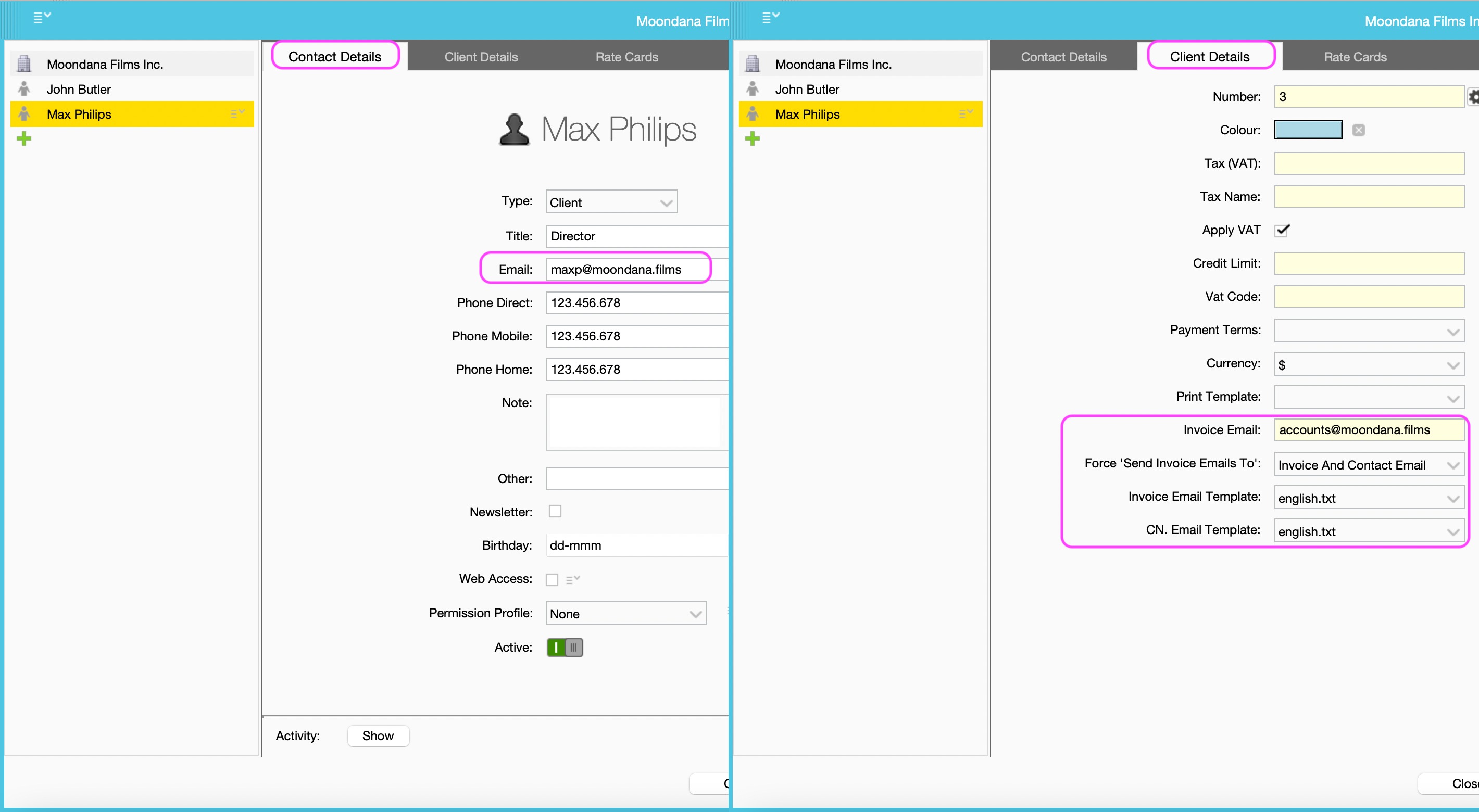
Override the Default Email Delivery Setting
To use different email recipients for a specific client:
Open the Edit Client window.
Enable Force 'Send Invoice Emails To'.
Select the preferred delivery option for that client.
Configure Default Templates
For each client, you can also define:
A default Print Template used to generate the PDF invoice.
The preferred Invoice and Credit Note Email Template.
Send an Invoice
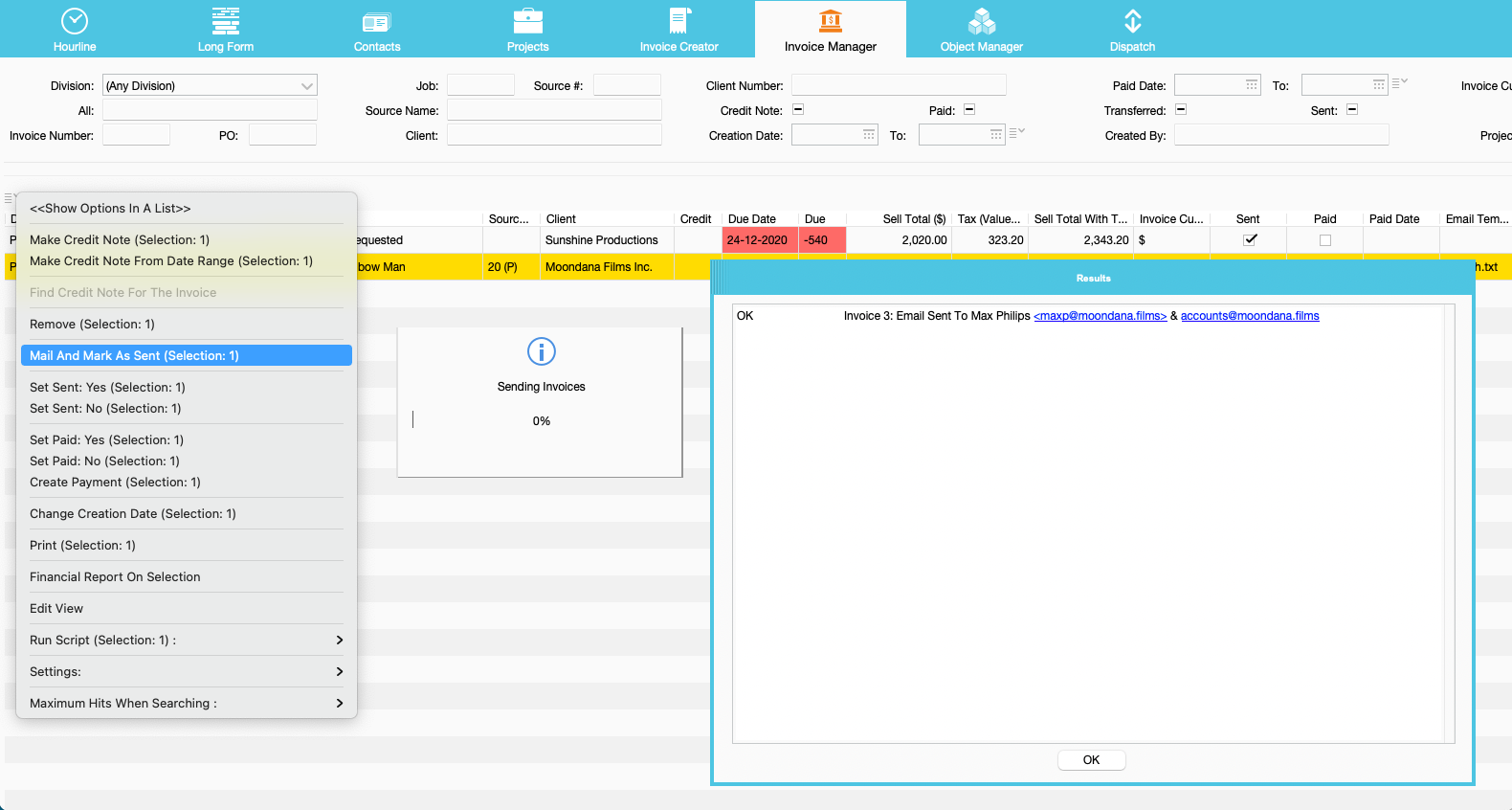
Open the Invoice Manager.
Select one or more invoices.
Right-click and choose Mail And Mark As Sent, or select the same option from the menu.
A confirmation message displays the results of the email process.
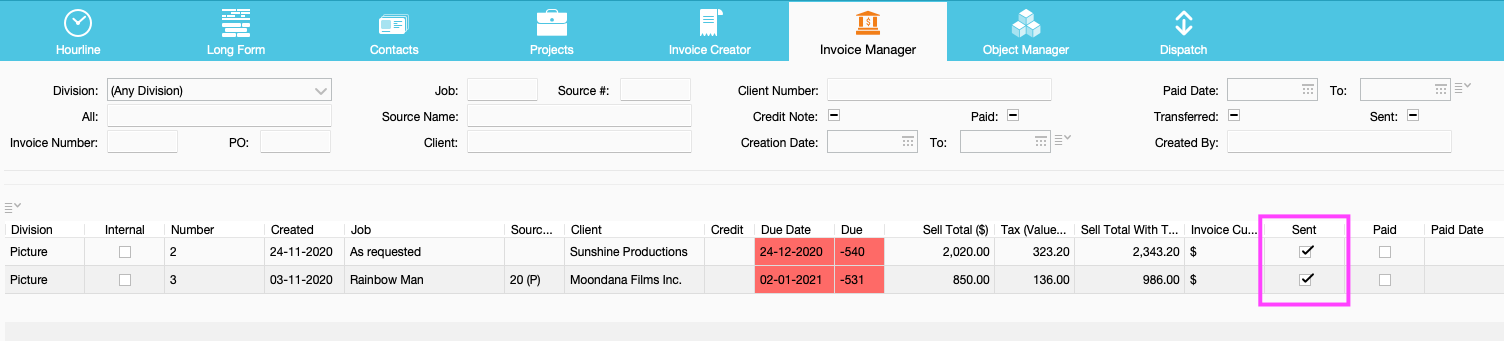
After a successful send, the invoice status is updated to Sent.
Email Example
The following example shows the invoice email received by the client and the configured BCC recipient.


Was this article helpful?
That’s Great!
Thank you for your feedback
Sorry! We couldn't be helpful
Thank you for your feedback
Feedback sent
We appreciate your effort and will try to fix the article