User Reports provide all Booking information associated with a User for a specific time period. The User Report can be used to display Time-report status, Vacation or Sick days used, create actualization reports (i.e. Booked versus Used time) and more, depending on the selected variables.
How to create a User Report:
a. Personnel Tree
Highlight a time range in the Long Form calendar for the report.
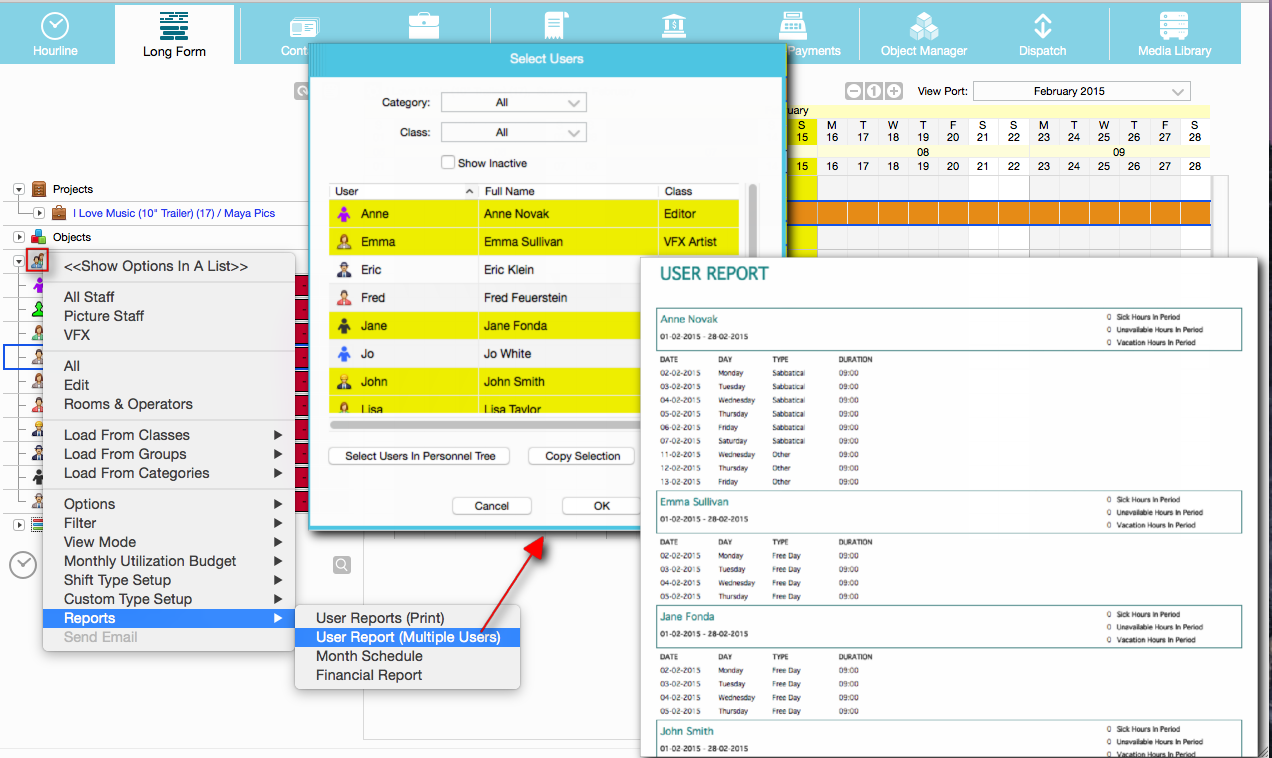
Click on one User’s icon (for single User Report) or click on the Personnel icon (for Multiple Users Report) > Reports > User Report.

A window will pop up if a time range is highlighted. Select NO for keeping only the highlighted days. Select YES to select the whole month displayed in the Long Form calendar.
b. Objects Tree
Highlight a time range in the Long Form calendar for the report.
Click on one Object icon > Reports > User Report.
c. Hourline view
If accessing through the Hourline, the User Report will include the dates displayed in the Hourline.
Click on one Object icon > Reports > User Report.
Report Options:
Configure different Reports with specific Event Types from the “User Event Report Settings,” found in the Print Designer preview by clicking "Options." 
These are the different areas under Elements/Options:
- Header: Contains date and time information, as well as the Company logo and other imported logos.
- Users: Contains variable related to Users.
- Events: Contains variables related to the Event the Users are involved in.
- Objects In Event: Contains details of the Objects in the Events, plus contact fields.
- Totals For Users: Contains the same variables than Users. The difference is that Totals for Users will appear below the Events variables. Therefore it depends on the desired layout whether this information should be displayed before or after the Events.
- Punch Clock Actions: Contains data from the Punch Clock.
- Footer: Contains date and time, like in the Header, but they will appear at the bottom of the report. Therefore it depends on the desired layout whether information should be displayed at the top or bottom of the report. Please note that the logos only display in the Header.
- Show Days Without Events: If selected, those days that contain no Event, will appear listed in the Report showing no events was booked.
Show Bookings With Status ‘Preliminary’: Select only if Preliminary Bookings are to be included in the Report.
- Show Bookings With Status ‘Planning’: Select only if Planning Bookings are to be included in the Report.
- Configure What Event Types To Show: The Select Event Types window opens to select which Events to display in the Report. As the Events are clicked, they jump from the Not Selected column into the Selected column, and the other way around.
- Configure What Objects In Events To Hide: The Hide Objects window opens to select which Objects to hide in the Report. Use Ctrl key (on PC) or Cmd key (on Mac) to multiple select.
In the User and Total per User section you can get totals for personnel and custom personnel events:

Header/Footer
In the Header and Footer Section you can get totals for the overall users included in the Report
PD Field | Description |
Company Logo | Logo uploaded in Server Setup/General Tab |
Report Start Date | First day of selected period for report |
Report End Date | Last day of selected period for report |
Print Date | Today |
Print Date And Time | ~ |
D – any custom type Used (Days) (Total) | Custom Types setup for Personnel will show here with Days total |
D – any custom type Used (Hours) (Total) | Custom Types setup for Personnel will show here with Hours total |
|
|
Users
This includes totals per user and will loop through the report.
Some explanation on number fields below:
Normal Working Hours (Per Day)** | From User Profile > Working Hours |
Booking Hours Total | Booking Hours / Used Hours if Booking is not yet reported. Should be summary of all… Based on confirmed Bookings. To include Preliminary & Planning go to ‘Options’ and mark the checkboxes. All hours from bookings that were not timereported + All Time reported hours from the bookings that were timereported (similar to timereport mode Used/Booked) Bookings _only_. Never Tasks, because they are simply not Bookings. |
Booking Hours Total (Only Booked) | Only Booked, deselect Tasks, Preliminary & Planning from the Options menue Hours from Bookings prior to being timereported (Similar to timereport mode Booked Only) |
Booking Hours Total (Only Timereported) | (Time reported hours from bookings that were time reported (similar to time report mode Used) |
Sick/Vacation/Sabbatical... Total (Hours) | The Day consists of the Hours defined as Working Hours** in the Users’ Profile e.g. Vacation is set to All Day and the Working Hours of the User are 10 Hours > in ‘Vacation Total (Hours)’ it shows as 10 Hours but in Days it’s 1 |
Sick/Vacation/Sabbatical... Total (Days) |
|
Hour In Lieu Total (Hours) |
|
Hour In Lieu Total (Days) |
|
Shift Total (Hours) |
|
Shift Total (Days) |
|
Worked Hours Total | Booking Hours Total (Booked/Used so either booked or if time reporteed then time repoted?) and Other (Personnel Type Other = treated as work) also Custom Types! Worked Hours are always more than Booking Hours. Bookings + any PM events that count as work. When you create a Custom PM Type, wife shows a dialog "Treat As Work" (Yes/No) controlling this. A typical work PM type would be Training. Tasks are not considered as work in these reports. They could be work, but they could also be things like "Go to the dentist". IF Bookings overlap and I time report both…??? |
Task Hours Total | Only Task Booking Hours. Tasks are not considered as work in these reports. They could be work, but they could also be things like "Go to the dentist". |
Events
The Events loop will list all the Hours per Event (Booking, Personnel Event, Task, Shift, Request)
Objects In Event
To build a more granular report you can show the Objects in Events, e.g. the related equipment, rooms etc.
Totals
Is identical to the Users loop. You can get the totals per each user here.
Related Server Settings affecting the calculations...
When "Timereport By Actual Time" is No, it no longer shows the Timereported In/Out times and no longer cuts overlapping events. Bookings are always considered to start at 06:00 in the morning. And for the same reason, it would consider them to overlap each other, so when calculating the total booking time it would be less than expected.
Now it shows "-" instead of the Timereported In/Out times. And it properly adds up the reported times, without cutting away any overlapping events.
User Reports on Multiple Users
To directly print out or create a report on multiple Users for the selected time period, click on the Personnel Tree icon and select 'Reports' from the drop-down menu, then the appropriate sub-selection. In the following pop up window, select Users and sort them as you want them to appear in the Report by clicking either the “User,” “Full Name,” or “Class” header. Then either choose a Template (sub-selection 'User Reports (Print)') or create a Template (sub-selection 'User Report (Multiple Users)').
Was this article helpful?
That’s Great!
Thank you for your feedback
Sorry! We couldn't be helpful
Thank you for your feedback
Feedback sent
We appreciate your effort and will try to fix the article