Introduction
The AI Assistant helps you quickly find information in farmerswife, check availability, search projects and objects, and access Knowledge Base articles.
The AI Assistant answers questions using farmerswife data. It does not modify your data: it is read-only.
- Before You Start
- First-Time Setup
- Using the AI Assistant
- What You Can Ask
- Troubleshooting
- Tips
- Example Questions
Watch this five-minute walkthrough for a closer look at how it works.
Before You Start
1. OpenAI Account & API Key
- Go to Platform OpenAI and create an account (or sign in)
- Navigate to API Keys in your account dashboard
- Click "Create new secret key", give it a Name, Default project, Permissions > All and copy the key.
- Go to https://platform.openai.com/settings/organization/billing/overview and add payment details. OpenAI charges per usage.
- Copy/keep this API key, your server administrator needs it.
The key is configured server-side in the server.cfg file located in the farmerswife system folder:
OPENAI_API_KEY <your key>
OPENAI_MODEL gpt-5.4
Please email support@farmerswife.com if your server is hosted by us.
Note: The OpenAI API Key is a server-wide setting — all users share the same key. It is never shown in the farmerswife interface and is not editable by end users.
2. Model Selection
The default model is gpt-5.4, which offers a good balance of speed and quality. The server administrator can change it with OPENAI_MODEL in server.cfg. Older/cheaper models are supported but give noticeably worse results with farmerswife data.
3. Enable the REST API Cache
An Admin must enable the REST API Cache in Toolbox > Settings > Server Setup.
4. AI License
The AI Assistant requires the AI license together with the Advanced module. If the license is not active, the AI Assistant will not appear in the Toolbox, even if the user permission is enabled. Contact farmerswife to check your license.
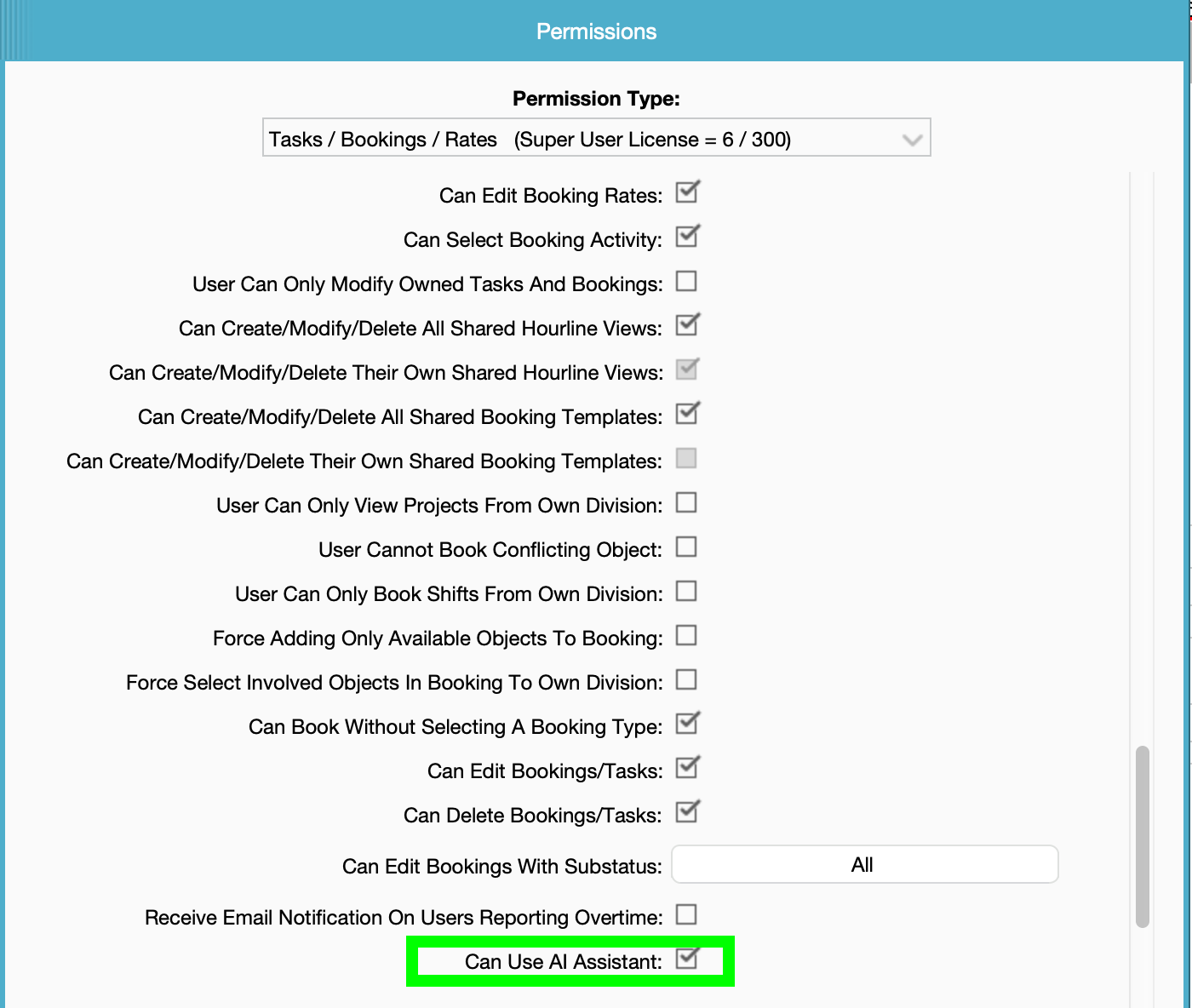
5. Enable User Permission to use the AI Assistant
- Your administrator must enable Can Use AI Assistant in your Permission Profile.
- If the permission is removed later, the AI Assistant tab is removed from the Toolbox on the next login.
First-Time Setup
You only need to do this once, but these steps needs to be done by each User that wants to use the Assistant.
1. Open the AI Assistant
Go to: Toolbox → Settings → Miscellaneous → Toolbox Menus → Add: AI Assistant
If you do not see the AI Assistant in the Toolbox menu, contact your administrator.
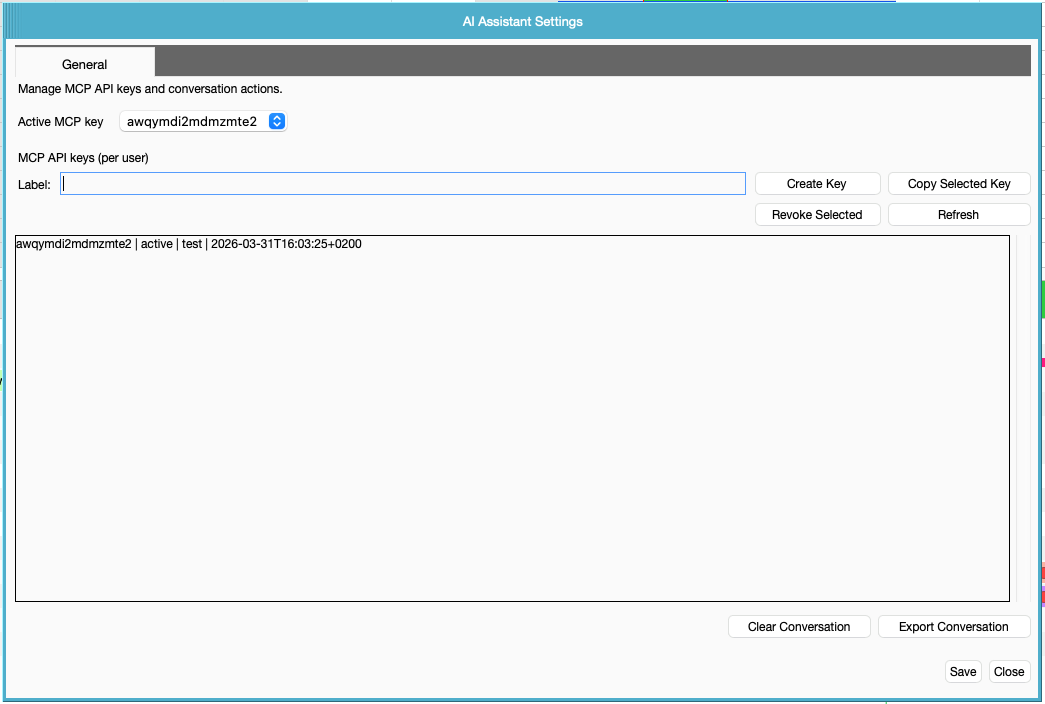
2. Open AI Settings
Click the Options icon (three-line menu in the bottom-right corner).
3. Create Your MCP API Key
In the General tab:
Click Create Key
Optionally enter a label for the key
The key is automatically copied to your clipboard
Select the new key as your Active MCP Key from the dropdown.
Click Save.
You are now ready to use the AI Assistant.
Using the AI Assistant
Type your question and press Enter or click Send Message.
The AI Assistant responds in a chat interface and supports:
Formatted responses
Tables
Markdown formatting
Copy-to-clipboard for responses
While the Assistant works, it shows what it is doing ("Checking availability…", "Looking up projects…", "Querying Knowledge Base…").
Conversation history is kept during your session and can be exported as a Markdown (.md) file. You can also copy any single response, or clear the conversation to start fresh.
The Assistant follows the farmerswife light and dark themes
What You Can Ask
Search Objects
Examples:
Find all objects in the class Editor
Show all available cameras
Object class names are matched exactly first: asking for the class Editor returns only Editor, not "Assistant Editor" or "Online Editor". Partial matching is only used when nothing matches exactly. Inactive members of a class are excluded.
Query Events
Examples:
Show tomorrow's events for Peter
What bookings are scheduled next week?
Check Availability
Examples:
- Check availability for ARRI ALEXA 3 next week
- Is Studio A available on Friday?
- Is Studio A free from 11:00 to 15:00 tomorrow?
- Which Editors are available on Thursday morning?
If you give a time range, availability is calculated on real overlap: a booking from 09:00 to 10:00 no longer makes a resource unavailable for an 11:00–15:00 request. If you do not give a time range, availability is calculated per day any booking on that day makes the day unavailable.
Query Projects
Examples:
Find the project I Love Music
Show active projects for Client X
How many hours of Editing did we use in project I Love Music
Search the Knowledge Base
The Knowledge Base is always available — no setup is required. It connects to the official farmerswife knowledge base. (Server requirement: the farmerswife server needs outbound HTTPS access on port 443.)
You can ask:
How do I create a budget?
Show me the article about scheduling
The AI Assistant will provide links to relevant articles when available.
Troubleshooting
"AI Assistant setup required"
You have not completed the MCP API key setup.
Open AI Settings and create/select an active MCP key.
"Selected MCP API key could not be loaded"
Your active key may have been revoked.
Create a new key or select another active key.
"AI Assistant is disabled for this user or license"
Contact your administrator to verify your permissions and license.
"Enable REST API cache"
An administrator must enable the REST API Cache in Toolbox > Settings > Server Setup before the AI Assistant can access farmerswife data.
"AI Assistant is not configured. Missing OPENAI_API_KEY."
The server administrator has not set OPENAI_API_KEY in server.cfg.
The Assistant says there is no cached data for that period
The REST API Cache does not cover the dates you asked about (for example, archived history older than the cache). This is not the same as "zero bookings" the Assistant will tell you explicitly when it cannot confirm a period. An empty answer for dates inside the cached range is a real zero.
The AI Assistant does not appear in the Toolbox
Check, in this order: the AI license is active, Can Use AI Assistant is enabled in your Permission Profile, and the AI Assistant is added under Toolbox → Settings → Miscellaneous → Toolbox Menus.
Tips
Be specific when asking questions.
If multiple projects have similar names, the AI may ask for clarification.
Export conversations as Markdown files when reporting issues to the support or development team.
Add a time range when you ask about availability ("free 11:00–15:00 on Friday") to get a precise answer instead of a whole-day one.
Use exact class and object names when you know them — the Assistant prefers exact matches.
The Assistant only sees data in the REST API Cache. Very old or archived periods may not be covered.
Example Questions
- Show tomorrow's events for Peter.
- Find the project I Love Music.
- Check availability for ARRI ALEXA 3 next week.
- Is Studio A free from 11:00 to 15:00 tomorrow?
- Which Editors are available on Thursday?
- How many hours of Editing did we use in project I Love Music?
- What booking statuses are available?
- How do I create a budget?
- Show me the scheduling article.
Was this article helpful?
That’s Great!
Thank you for your feedback
Sorry! We couldn't be helpful
Thank you for your feedback
Feedback sent
We appreciate your effort and will try to fix the article